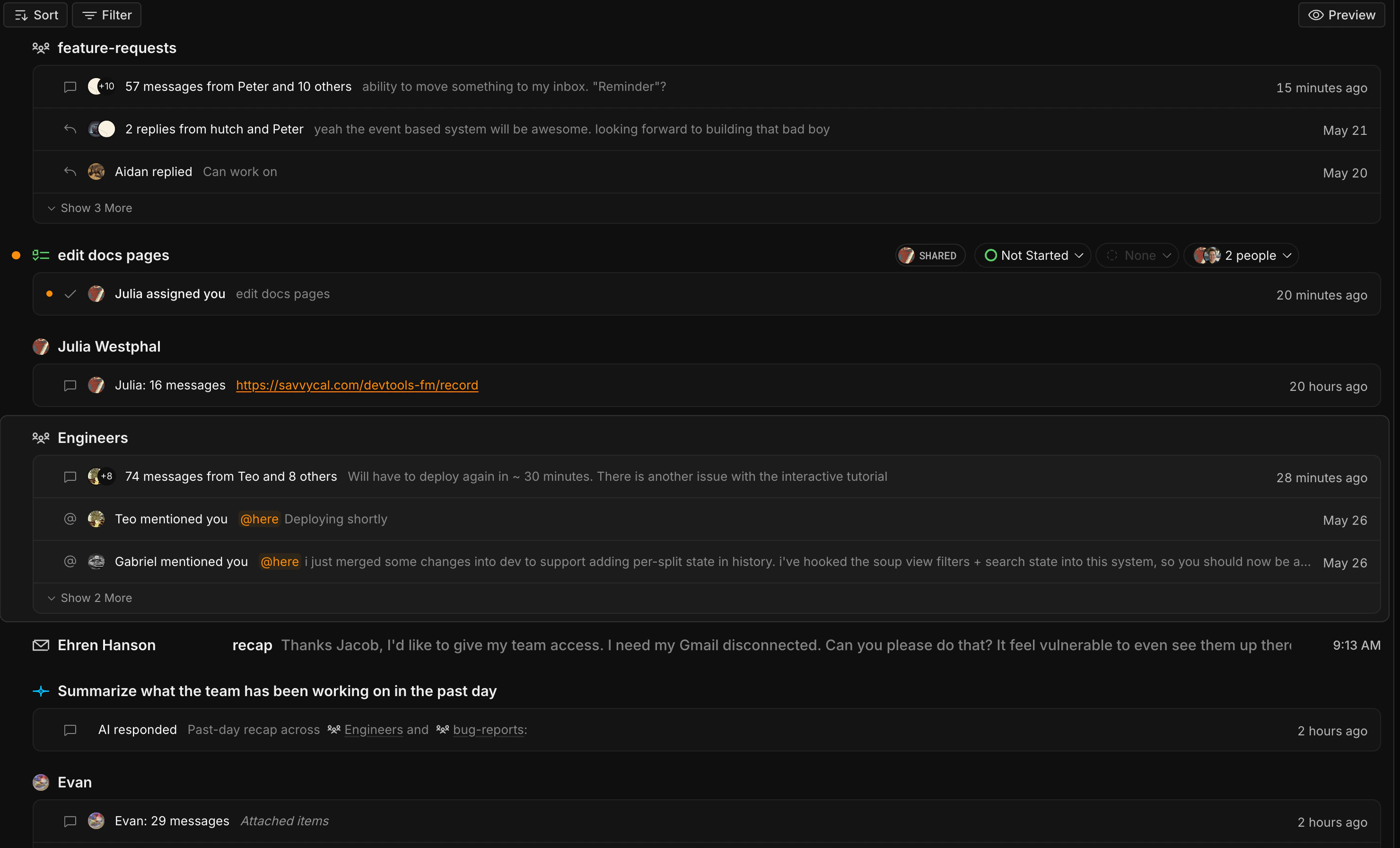
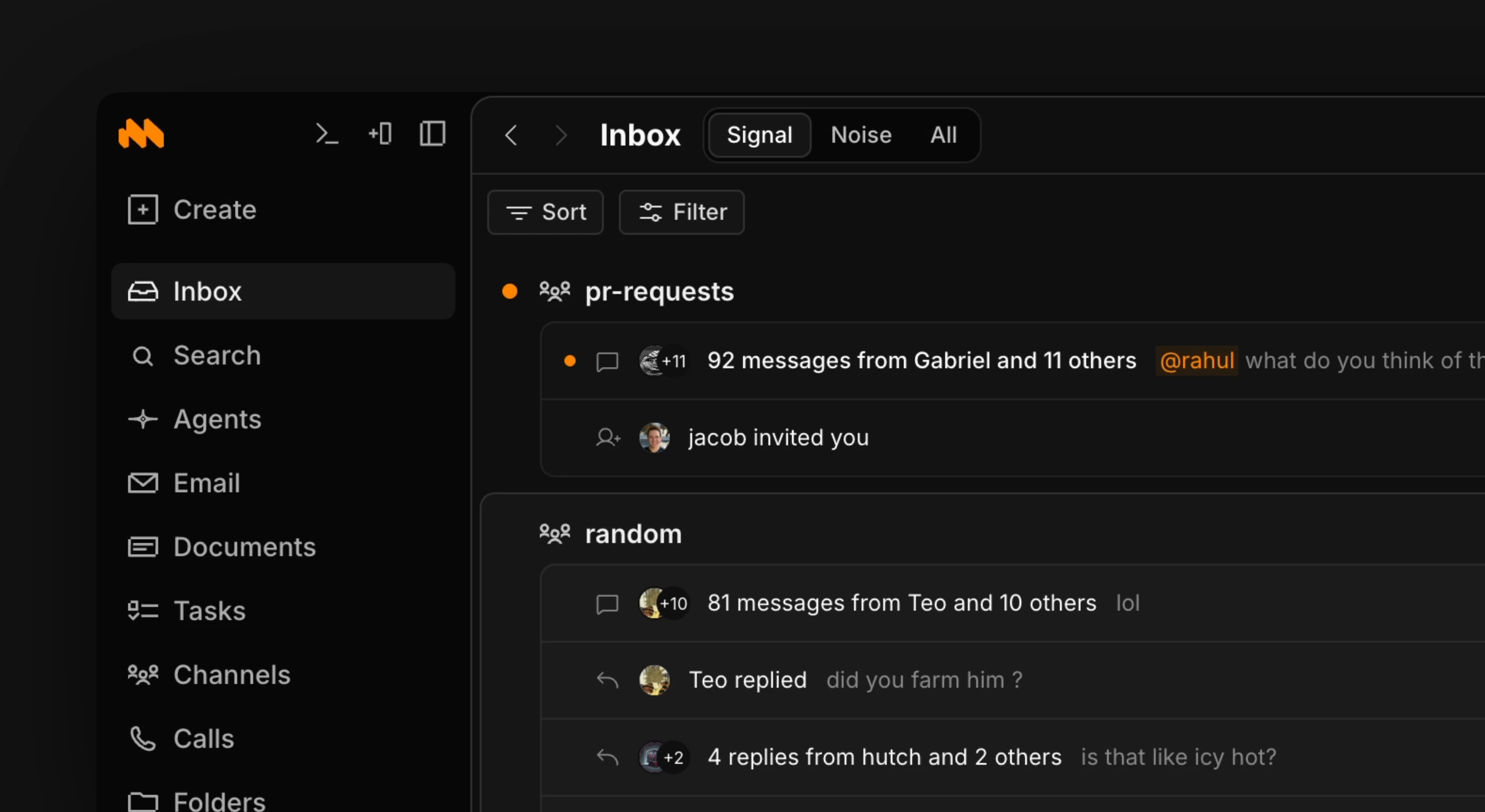
Inbox Screenshot
The shortcut to get to your inbox is g + i and pressing space will show you a preview of the selected notification. Use j & k keys to toggle up and down through different inbox items.
From your inbox, you can filter by signal or noise with signal holding your important notifications. Any tasks assigned to you will be added to the inbox as well as new messages, emails, agent responses. Select any item in your inbox to be brought to it’s dedicated component. You can use the bottom input box to ask AI to summarize portions, explain in more detail, respond, etc.
Inbox Full

Signal vs noise:

The Signal view is your action list. It surfaces the things across Macro that currently need your attention. An item shows up here when you have an open notification:
  • a reply
  • a mention
  • an update
that you haven’t cleared yet and it was active recently (within roughly the last two weeks). Once you mark a notification as “done,” the item drops out of the view. So the list naturally shrinks as you work through it, like an inbox.
Press e to mark an item as “done” and remove it from your inbox.

What can appear

The inbox view pulls from across the whole product into one combined, recency-sorted list:
TypeShows up when…
DocumentsYou have an open notification on it, and it was updated recently
ChatsYou have an open notification on it, and it was updated recently
FoldersYou have an open notification on it, and it was updated recently
Email ThreadsYou have an open notification on it, it was updated recently, and it’s flagged important and not a shared thread
ChannelsYou have an open notification on it
CallsNever — calls are intentionally excluded from this view