To create a new snippet use shortcut c + sA snippet is a full markdown document, so it supports everything the document editor does: headings, lists, checklists, tables, code blocks, and the rest. Edit a snippet at any time and every future insertion uses the updated content.
Creating a snippet
Press c to open the create launcher, then s — or click the Snippet card. Give the snippet a clear name; it’s what you’ll search for in the ; menu.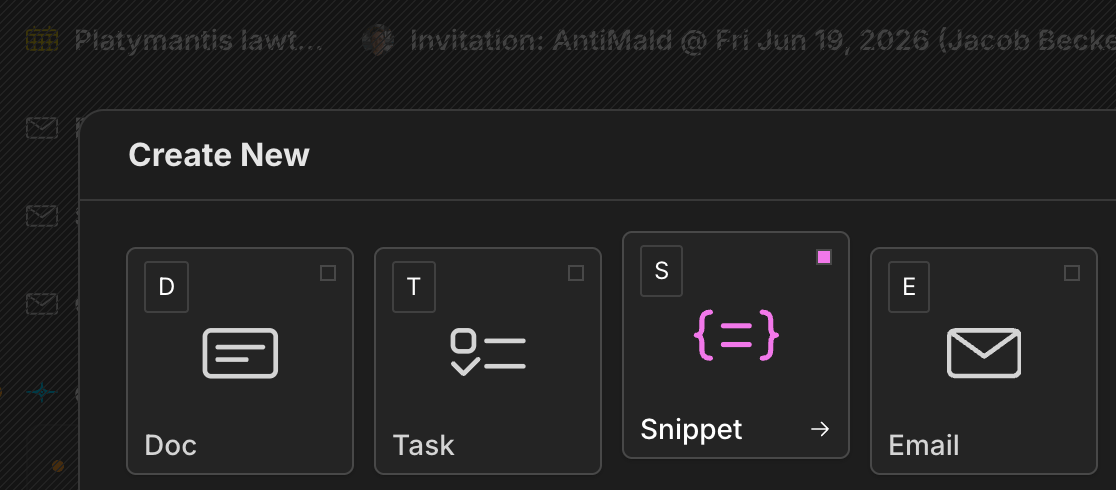
Inserting a snippet
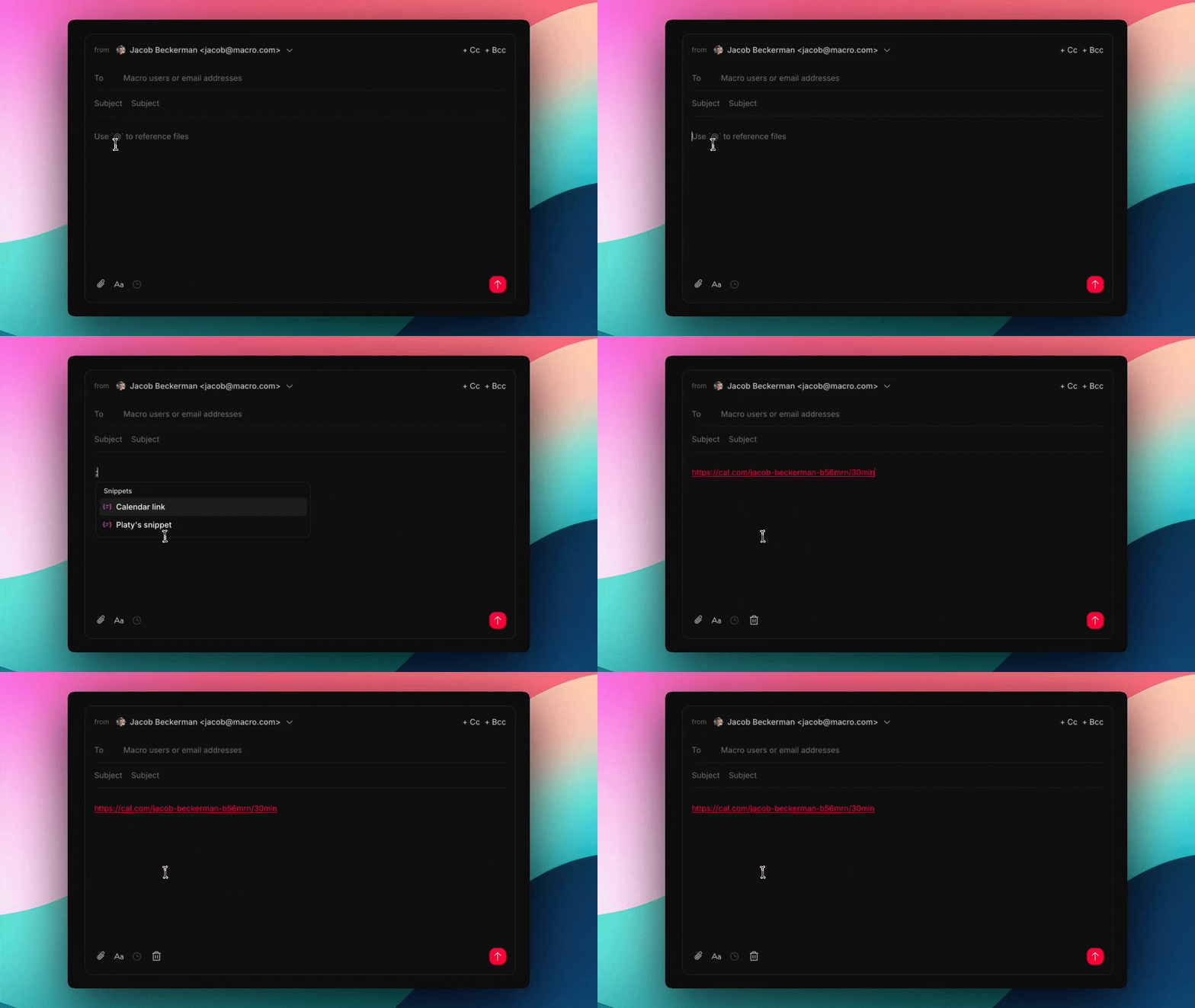
Type ; at the start of a line or after a space to open the snippets menu. It works in every markdown surface — documents, tasks, channel messages, canvas text boxes, and agent instructions.- Keep typing to filter snippets by name
- ↑ / ↓ to navigate, enter to insert
- esc or space to dismiss the menu and keep the
;as regular text
Sharing with your team
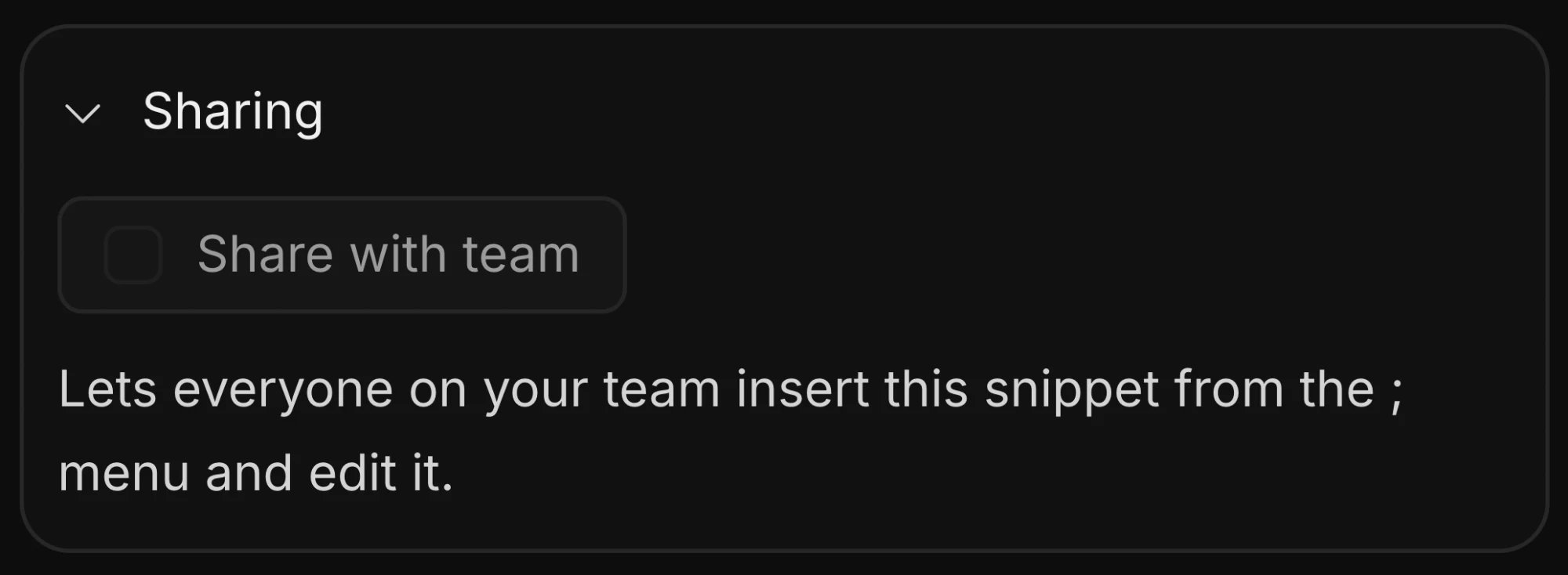
Snippets are personal when created. To share one, open it and turn on Share with team in the Sharing section of the side panel. Shared snippets show up in every teammate’s ; menu, and teammates can edit them — useful for keeping a single source of truth for templates the whole team uses.