

marketing and a task marketing and it’s the same marketing: one color, one filter, one click to see everything carrying it.
Tags are for organizing your work by project, team, or area, like marketing, hiring, or q3-launch. They aren’t for tracking status. Status, priority, and assignees are properties that describe a single item, while a tag is a property that ties related items together across the whole workspace.

What you can tag
The same tags apply across:- Documents — tag PDFs, other files, and snippets
- Tasks — tag a task to group it with related work
- Emails — tag a whole thread
- AI chats — tag a conversation with an agent
- Calls — tag a recording or transcript
Creating and applying tags
Type# in a document to open the tag menu, then pick an existing tag or create a new one. Tags render inline as colored pills, and clicking a pill shows everything else carrying it.
Everywhere else, use the tag panel in the properties window. Select one of your existing tags or start typing to create a new one.
An item can carry as many tags as you like, so the same email or task can sit under marketing and q3-launch at once.
If you would like to select or unselect multiple tags, hold Shift while clicking them.
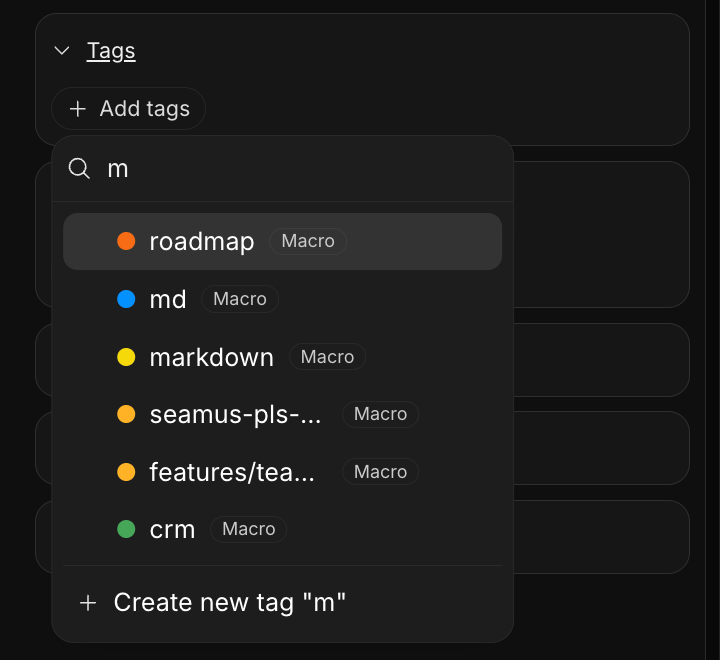
Personal and team tags
When you create a tag you choose its scope:- Personal — only you see it. Anyone can create personal tags.
- Team — shared with everyone on your team. Creating a team tag requires being on a team.
Colors
Every tag has a color from a fixed palette: Red Tomato Orange Amber Yellow Green Teal Blue Indigo Purple Pink Gray
Filtering and search
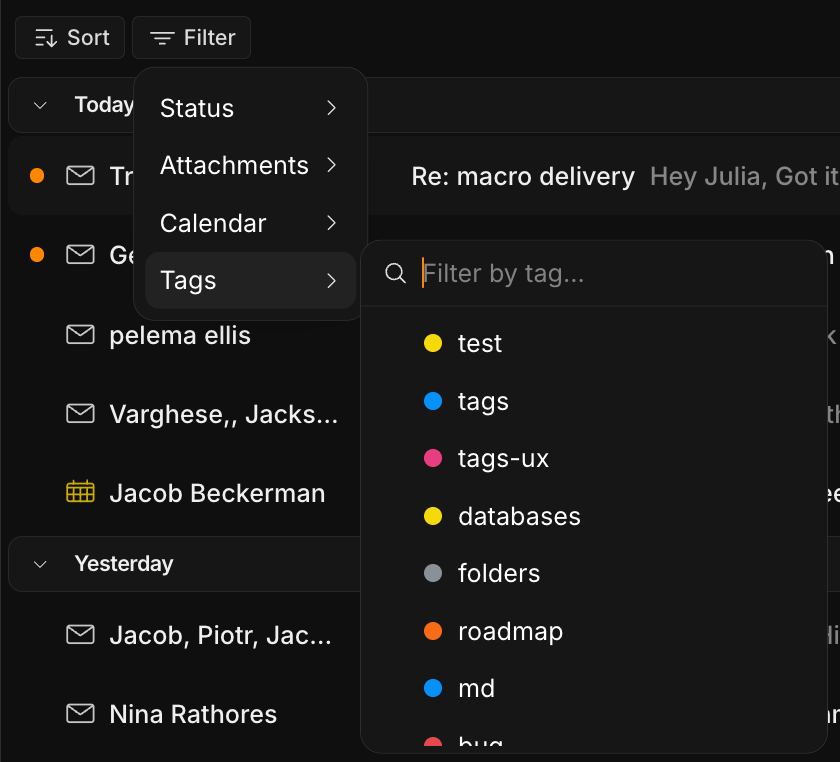
In any block, go to Filter → Tags to show only the items carrying a tag. To filter across your entire workspace at once, use the same Tags chip in the filter menu of search. Select two or more tags and a match-mode toggle appears:- Any — items that have any of the selected tags (the default)
- All — items that have every selected tag, for example everything tagged both
marketingandq3-launch
Managing your tags
Curate the full set from Settings → Tags, which lists your Personal and Team tags with edit and delete actions and a New tag button. It’s the place to rename, recolor, or clean up tags without hunting for an item that uses them.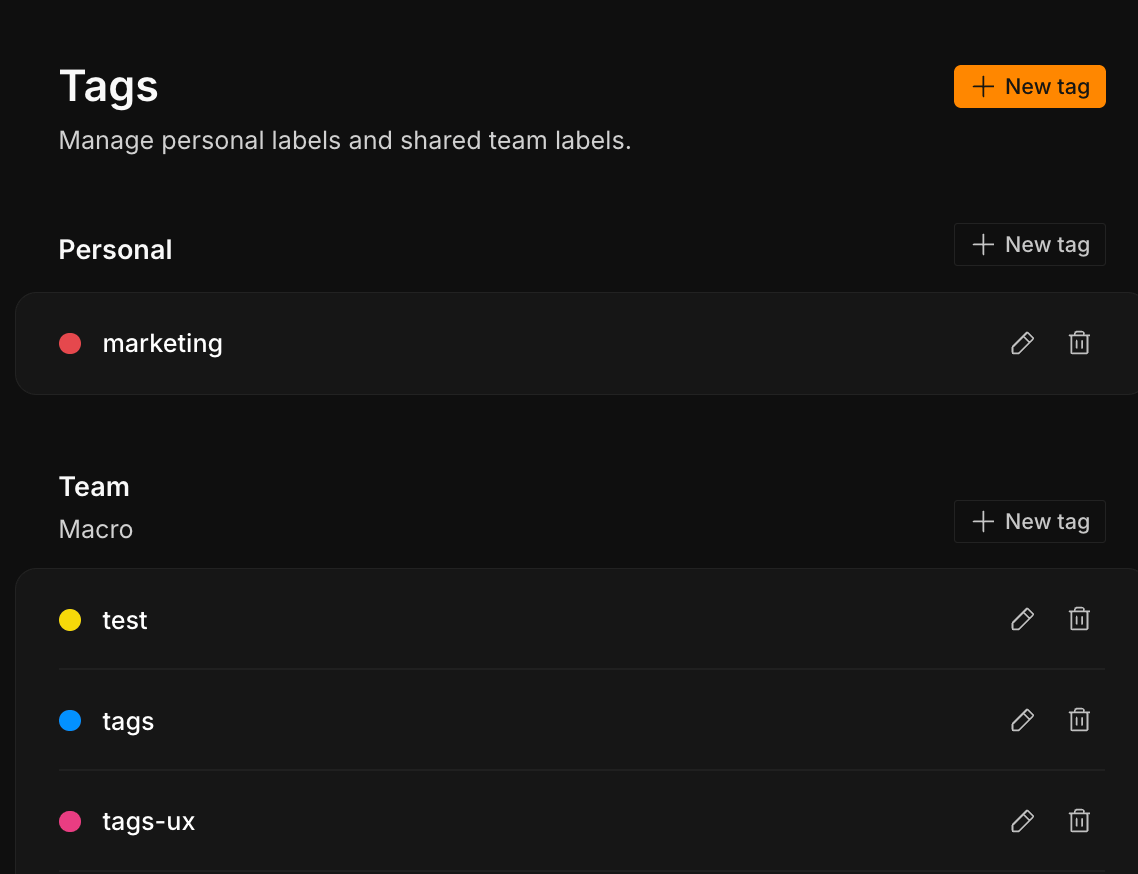
Tags are not email labels. Your Gmail labels (Inbox, Starred, Important, and any you’ve made) still sync and drive inbox actions like archive and star. Macro tags are a separate, cross-workspace layer that sits on top — an email thread can carry both.
Tagging with agents
Tell your AI client (Claude Code, Cursor) connected to the MCP server “tag this threadmarketing” or “make a q3-launch tag and add it to these tasks,” and it handles the rest without you leaving your editor.