> ## Documentation Index
> Fetch the complete documentation index at: https://docs.macro.com/llms.txt
> Use this file to discover all available pages before exploring further.
# Unified Tagging
> One set of colored tags that spans every block type: docs, email, tasks, chats, and calls.
A tag is a [property](/concepts/properties), and because properties are shared across your whole workspace, a single tag namespace spans every block type. Tag an email `marketing` and a task `marketing` and it's the same `marketing`: one color, one filter, one click to see everything carrying it.
Tags are for organizing your work by project, team, or area, like `marketing`, `hiring`, or `q3-launch`. They aren't for tracking status. Status, priority, and assignees are [properties](/concepts/properties) that describe a single item, while a tag is a property that ties related items together across the whole workspace.
 ## What you can tag
The same tags apply across:
* **Documents** — tag PDFs, other files, and [snippets](/product/snippets)
* **Tasks** — tag a task to group it with related work
* **Emails** — tag a whole thread
* **AI chats** — tag a conversation with an agent
* **Calls** — tag a recording or transcript
## Creating and applying tags
The fastest way is inline. Type `#` in a document to open the tag menu, then pick an existing tag or create a new one. Tags render inline as colored pills, and clicking a pill shows everything else carrying it.
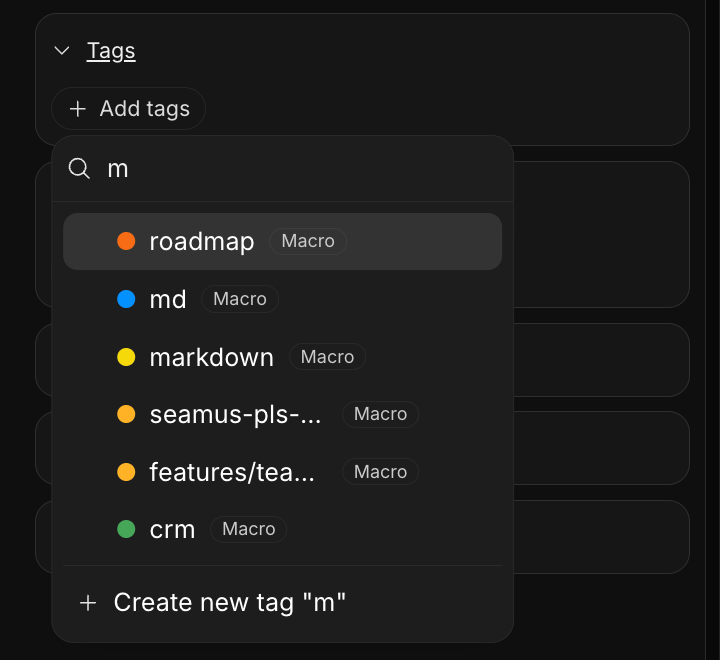
Everywhere else, use the tag panel in the properties window. Select one of your existing tags or start typing to create a new one.
An item can carry as many tags as you like, so the same email or task can sit under `marketing` and `q3-launch` at once.
> If you would like to select or unselect multiple tags, hold Shift while clicking them.
## What you can tag
The same tags apply across:
* **Documents** — tag PDFs, other files, and [snippets](/product/snippets)
* **Tasks** — tag a task to group it with related work
* **Emails** — tag a whole thread
* **AI chats** — tag a conversation with an agent
* **Calls** — tag a recording or transcript
## Creating and applying tags
The fastest way is inline. Type `#` in a document to open the tag menu, then pick an existing tag or create a new one. Tags render inline as colored pills, and clicking a pill shows everything else carrying it.
Everywhere else, use the tag panel in the properties window. Select one of your existing tags or start typing to create a new one.
An item can carry as many tags as you like, so the same email or task can sit under `marketing` and `q3-launch` at once.
> If you would like to select or unselect multiple tags, hold Shift while clicking them.
 ## Personal and team tags
When you create a tag you choose its scope:
* **Personal** — only you see it. Anyone can create personal tags.
* **Team** — shared with everyone on your team. Creating a team tag requires being on a [team](/account/teams).
Renaming or recoloring a tag keeps its identity, so the change flows to every item already carrying it. Deleting a tag is destructive and it will be removed from everything at once and can't be undone.
## Colors
Every tag has a color from a fixed palette:
## Personal and team tags
When you create a tag you choose its scope:
* **Personal** — only you see it. Anyone can create personal tags.
* **Team** — shared with everyone on your team. Creating a team tag requires being on a [team](/account/teams).
Renaming or recoloring a tag keeps its identity, so the change flows to every item already carrying it. Deleting a tag is destructive and it will be removed from everything at once and can't be undone.
## Colors
Every tag has a color from a fixed palette:
Red
Tomato
Orange
Amber
Yellow
Green
Teal
Blue
Indigo
Purple
Pink
Gray
## Filtering and search
Tags turn a pile of items into a lightweight database. In any block, go to **Filter → Tags** to show only the items carrying a tag. To filter across your entire workspace at once, use the same **Tags** chip in the filter menu of [search](/product/search#filtering-by-tags). Select two or more tags and a match-mode toggle appears:
* **Any** — items that have any of the selected tags (the default)
* **All** — items that have every selected tag, for example everything tagged both `marketing` and `q3-launch`
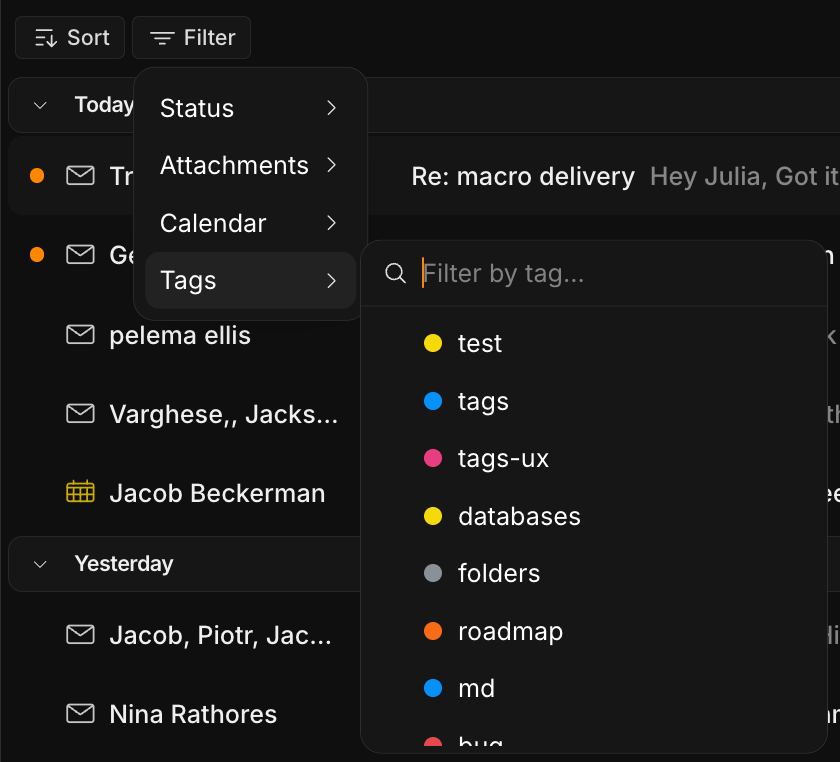 Clicking a tag pill anywhere jumps straight to everything else carrying it.
## Managing your tags
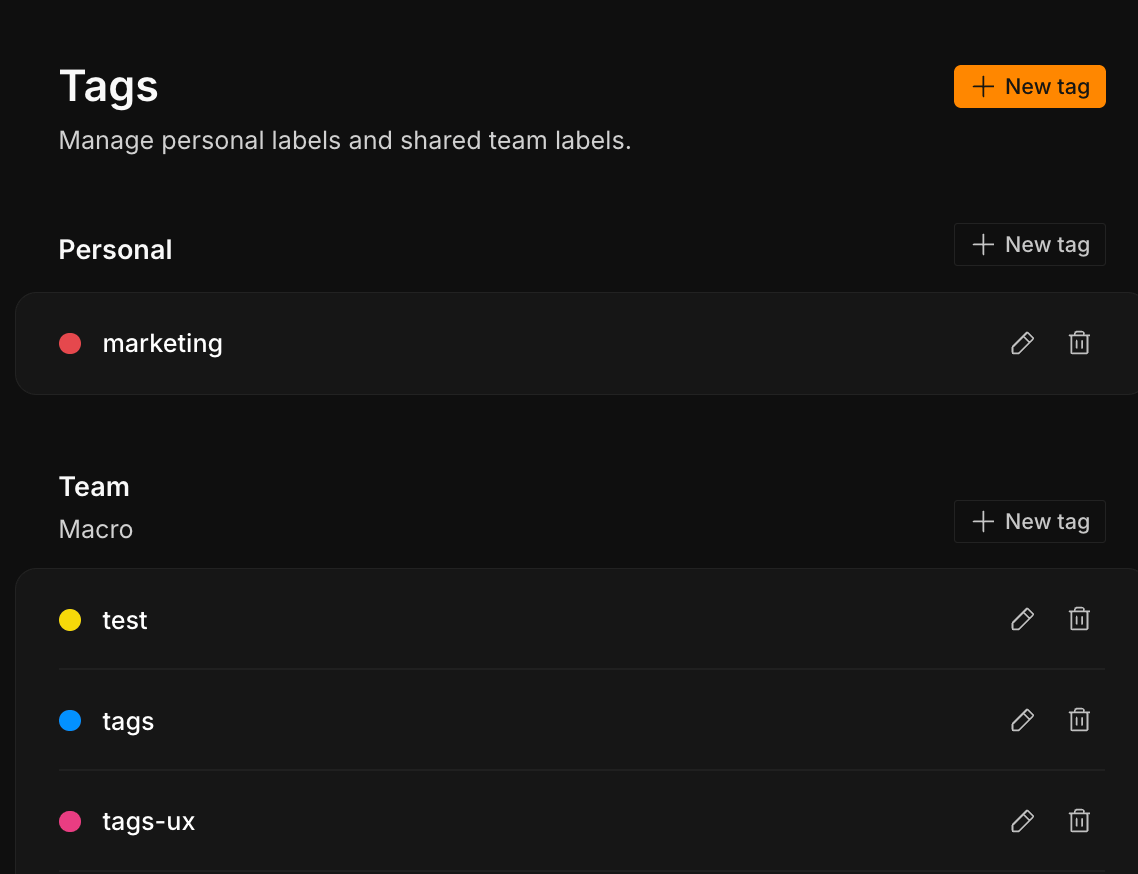
Curate the full set from **Settings → Tags**, which lists your **Personal** and **Team** tags with edit and delete actions and a **New tag** button. It's the place to rename, recolor, or clean up tags without hunting for an item that uses them.
Clicking a tag pill anywhere jumps straight to everything else carrying it.
## Managing your tags
Curate the full set from **Settings → Tags**, which lists your **Personal** and **Team** tags with edit and delete actions and a **New tag** button. It's the place to rename, recolor, or clean up tags without hunting for an item that uses them.
 **Tags are not email labels.** Your Gmail labels (Inbox, Starred, Important, and any you've made) still sync and drive inbox actions like archive and star. Macro tags are a separate, cross-workspace layer that sits on top — an email thread can carry both.
## Tagging with agents
Tell your local model (Claude Code, Cursor) connected to the [MCP server](/AI/mcp/overview) "tag this thread `marketing`" or "make a `q3-launch` tag and add it to these tasks," and it handles the rest without you leaving your editor.
**Tags are not email labels.** Your Gmail labels (Inbox, Starred, Important, and any you've made) still sync and drive inbox actions like archive and star. Macro tags are a separate, cross-workspace layer that sits on top — an email thread can carry both.
## Tagging with agents
Tell your local model (Claude Code, Cursor) connected to the [MCP server](/AI/mcp/overview) "tag this thread `marketing`" or "make a `q3-launch` tag and add it to these tasks," and it handles the rest without you leaving your editor.