> ## Documentation Index
> Fetch the complete documentation index at: https://docs.macro.com/llms.txt
> Use this file to discover all available pages before exploring further.
# Snippets
> Reusable text you can insert anywhere by typing ;
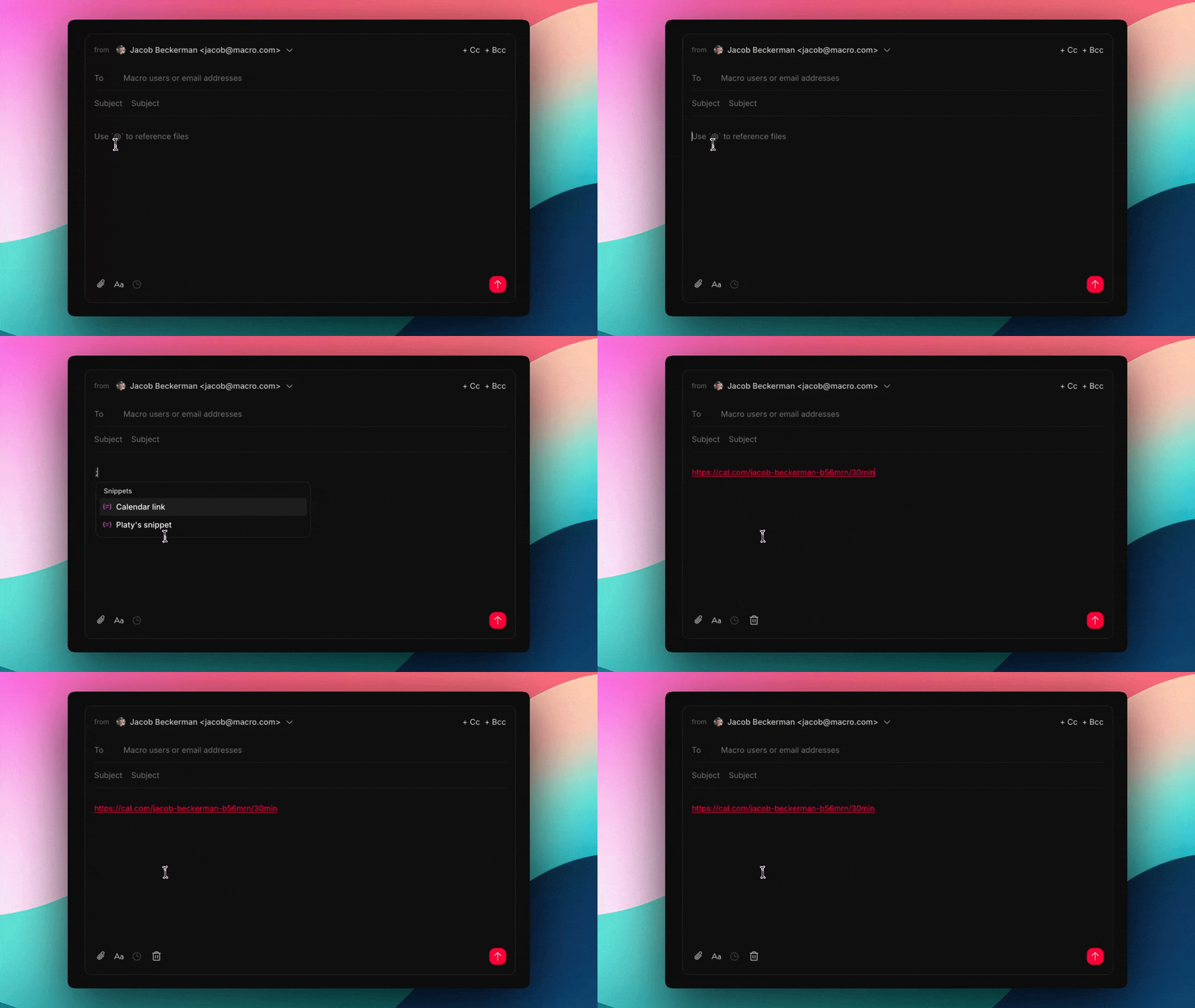 Snippets are reusable pieces of markdown — a meeting-notes template, a standard reply, a code-review checklist — that you can drop into anything you're writing. Type ; in any markdown area, pick a snippet, and its content is inserted at your cursor.
> To create a new snippet use shortcut c + s
A snippet is a full markdown document, so it supports everything the [document editor](/product/docs) does: headings, lists, checklists, tables, code blocks, and the rest. Edit a snippet at any time and every future insertion uses the updated content.
### Creating a snippet
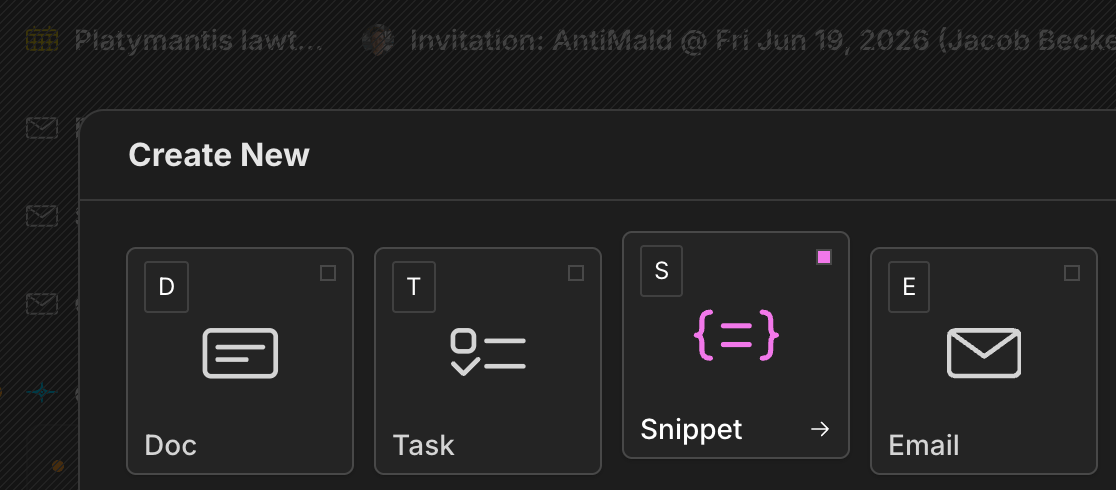
Press c to open the create launcher, then s — or click the Snippet card. Give the snippet a clear name; it's what you'll search for in the ; menu.
Snippets are reusable pieces of markdown — a meeting-notes template, a standard reply, a code-review checklist — that you can drop into anything you're writing. Type ; in any markdown area, pick a snippet, and its content is inserted at your cursor.
> To create a new snippet use shortcut c + s
A snippet is a full markdown document, so it supports everything the [document editor](/product/docs) does: headings, lists, checklists, tables, code blocks, and the rest. Edit a snippet at any time and every future insertion uses the updated content.
### Creating a snippet
Press c to open the create launcher, then s — or click the Snippet card. Give the snippet a clear name; it's what you'll search for in the ; menu.
 ### Inserting a snippet
Type ; at the start of a line or after a space to open the snippets menu. It works in every markdown surface — documents, tasks, channel messages, canvas text boxes, and agent instructions.
* Keep typing to filter snippets by name
* ↑ / ↓ to navigate, enter to insert
* esc or space to dismiss the menu and keep the `;` as regular text
The snippet's markdown is inserted at your cursor with formatting intact.
### Sharing with your team
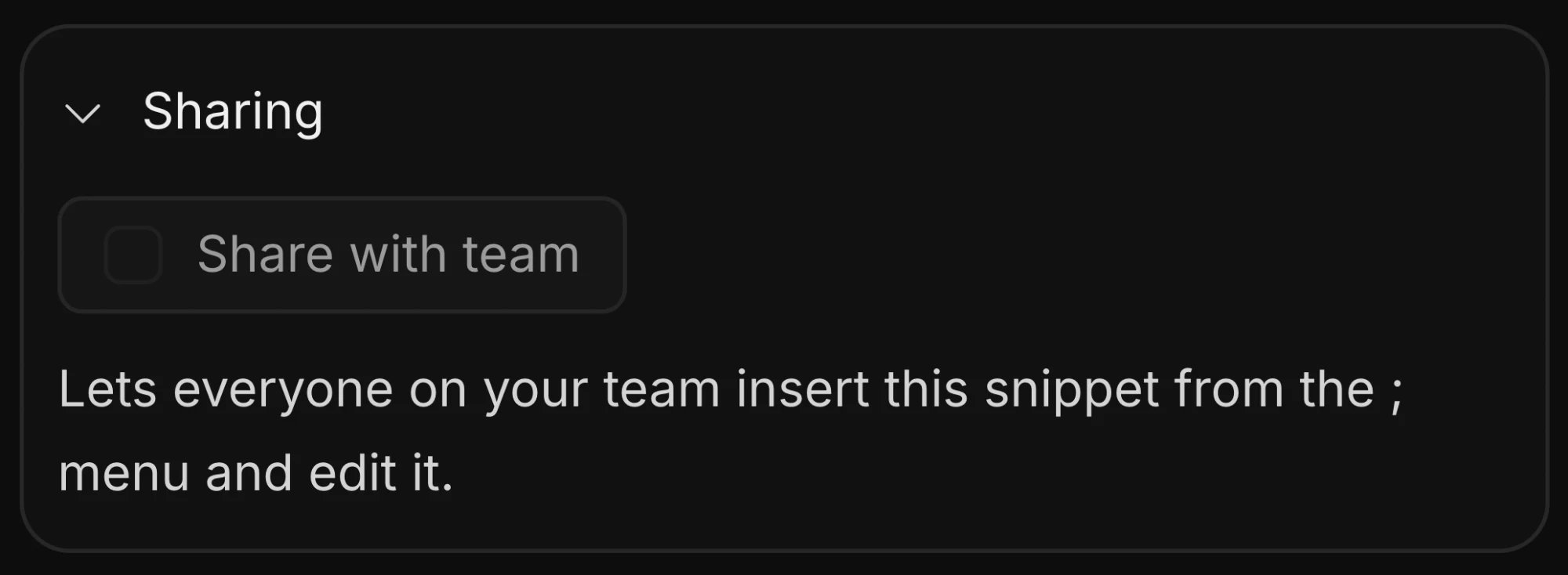
Snippets are personal when created. To share one, open it and turn on **Share with team** in the Sharing section of the side panel. Shared snippets show up in every teammate's ; menu, and teammates can edit them — useful for keeping a single source of truth for templates the whole team uses.
### Inserting a snippet
Type ; at the start of a line or after a space to open the snippets menu. It works in every markdown surface — documents, tasks, channel messages, canvas text boxes, and agent instructions.
* Keep typing to filter snippets by name
* ↑ / ↓ to navigate, enter to insert
* esc or space to dismiss the menu and keep the `;` as regular text
The snippet's markdown is inserted at your cursor with formatting intact.
### Sharing with your team
Snippets are personal when created. To share one, open it and turn on **Share with team** in the Sharing section of the side panel. Shared snippets show up in every teammate's ; menu, and teammates can edit them — useful for keeping a single source of truth for templates the whole team uses.
 Snippets work well for anything you type more than twice: weekly update formats, onboarding checklists, support replies, PR descriptions, or boilerplate legal language.