> ## Documentation Index
> Fetch the complete documentation index at: https://docs.macro.com/llms.txt
> Use this file to discover all available pages before exploring further.
# Unified Inbox
> All your email accounts, messages, and @mentions in a single inbox.
The idea behind Macro's unified inbox is that you should only have to check one thing to understand what is going on at your company, instead of 7+ different apps. Inspired by Superhuman/Gmail's shortcuts, but extended to everything in your workspace.
* **Emails**, from all connected accounts
* **Messages** from all channels and DM's
* **Agents**, when they finish running
* @mentions in **document** comments
* **Tasks** assigned to you
* **Files** shared with you
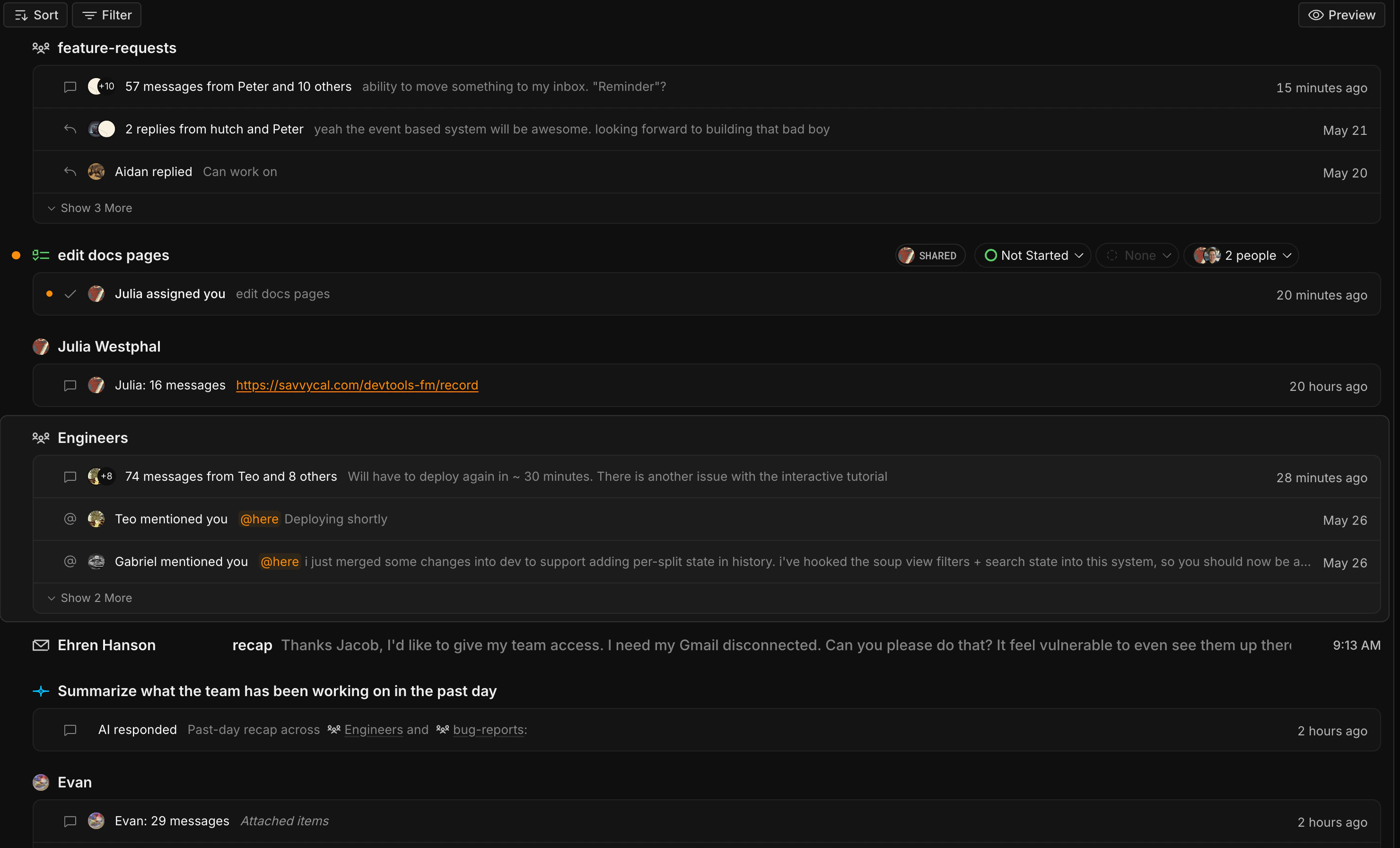 The shortcut to get to your inbox is g + i.
Use j and k or arrow keys to toggle up and down through different inbox items.
Press space to preview the selected list item in split-screen, enter to open it fullscreen. You can still use j and k when in preview or fullscreen.
Use shift+enter to open in a new split view. This is useful if you want to multi-task.
Press e to mark an item as "done" and remove it from your inbox.
## Signal vs. Noise
From your inbox, you can filter by Signal or Noise. Signal holds your important notifications and Noise is for spammy emails and other things you probably don't need to see but should still check from time to time (AI can make mistakes).
The shortcut to get to your inbox is g + i.
Use j and k or arrow keys to toggle up and down through different inbox items.
Press space to preview the selected list item in split-screen, enter to open it fullscreen. You can still use j and k when in preview or fullscreen.
Use shift+enter to open in a new split view. This is useful if you want to multi-task.
Press e to mark an item as "done" and remove it from your inbox.
## Signal vs. Noise
From your inbox, you can filter by Signal or Noise. Signal holds your important notifications and Noise is for spammy emails and other things you probably don't need to see but should still check from time to time (AI can make mistakes).
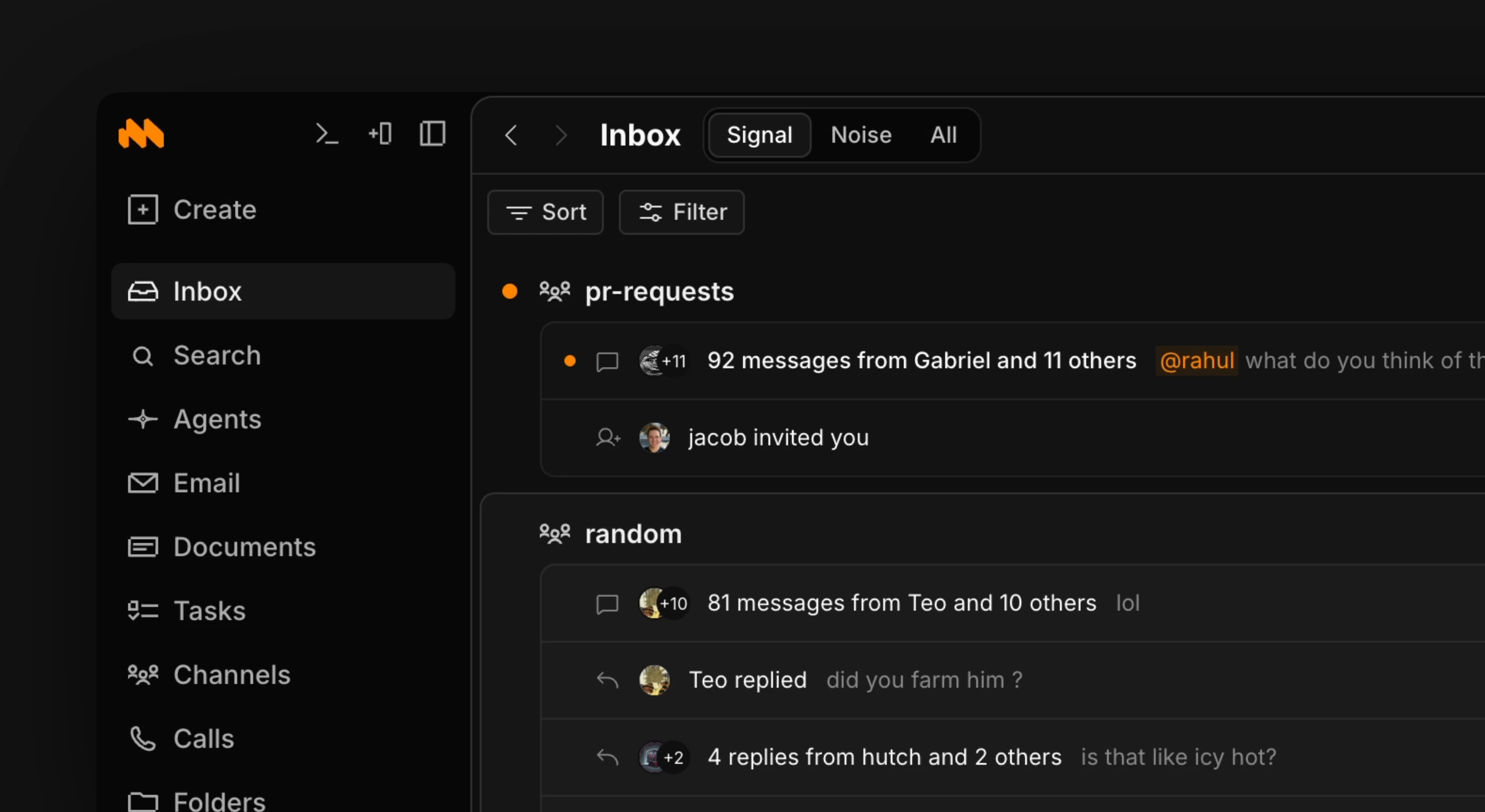 You can think of the Signal view as your *action list*. It's the tab you'll have open most often throughout the day. It shows the things across Macro that currently need your attention.
## How we use it
The Superhuman email client popularized the concept of "Inbox Zero", and we stole it here and applied it to your entire workspace. We strongly recommend using e to mark-done notifications when you've viewed them. If you get a little behind you can use shift ↓ to select multiple notifications then e to mark all as done.
## Date grouping
Your inbox and email lists group items by date, so recent activity stays together at the top and older items fall into their own sections as you scroll. This keeps a busy list scannable without changing any of your filters or sorting.
## On mobile
On mobile, pull down from the top of any list — inbox, mail, documents, tasks, customers, or search — to refresh it. A spinner drops in while the list refetches and retracts once it's up to date.
You can think of the Signal view as your *action list*. It's the tab you'll have open most often throughout the day. It shows the things across Macro that currently need your attention.
## How we use it
The Superhuman email client popularized the concept of "Inbox Zero", and we stole it here and applied it to your entire workspace. We strongly recommend using e to mark-done notifications when you've viewed them. If you get a little behind you can use shift ↓ to select multiple notifications then e to mark all as done.
## Date grouping
Your inbox and email lists group items by date, so recent activity stays together at the top and older items fall into their own sections as you scroll. This keeps a busy list scannable without changing any of your filters or sorting.
## On mobile
On mobile, pull down from the top of any list — inbox, mail, documents, tasks, customers, or search — to refresh it. A spinner drops in while the list refetches and retracts once it's up to date.