> ## Documentation Index
> Fetch the complete documentation index at: https://docs.macro.com/llms.txt
> Use this file to discover all available pages before exploring further.

# CRM

> Contact and company records built automatically from your team's email.

<Frame>
  <img src="https://mintcdn.com/macro-a2d84caa/KajalJo9igYN-lIy/images/crm_better.png?fit=max&auto=format&n=KajalJo9igYN-lIy&q=85&s=87b64e0cdee2b174b55fd5268093e9fc" alt="The CRM board view, with one column per stage" width="2550" height="1520" data-path="images/crm_better.png" />
</Frame>

<Note>
  CRM is rolling out now. If you don't see the **Customers** view in your workspace yet, it hasn't reached your account.
</Note>

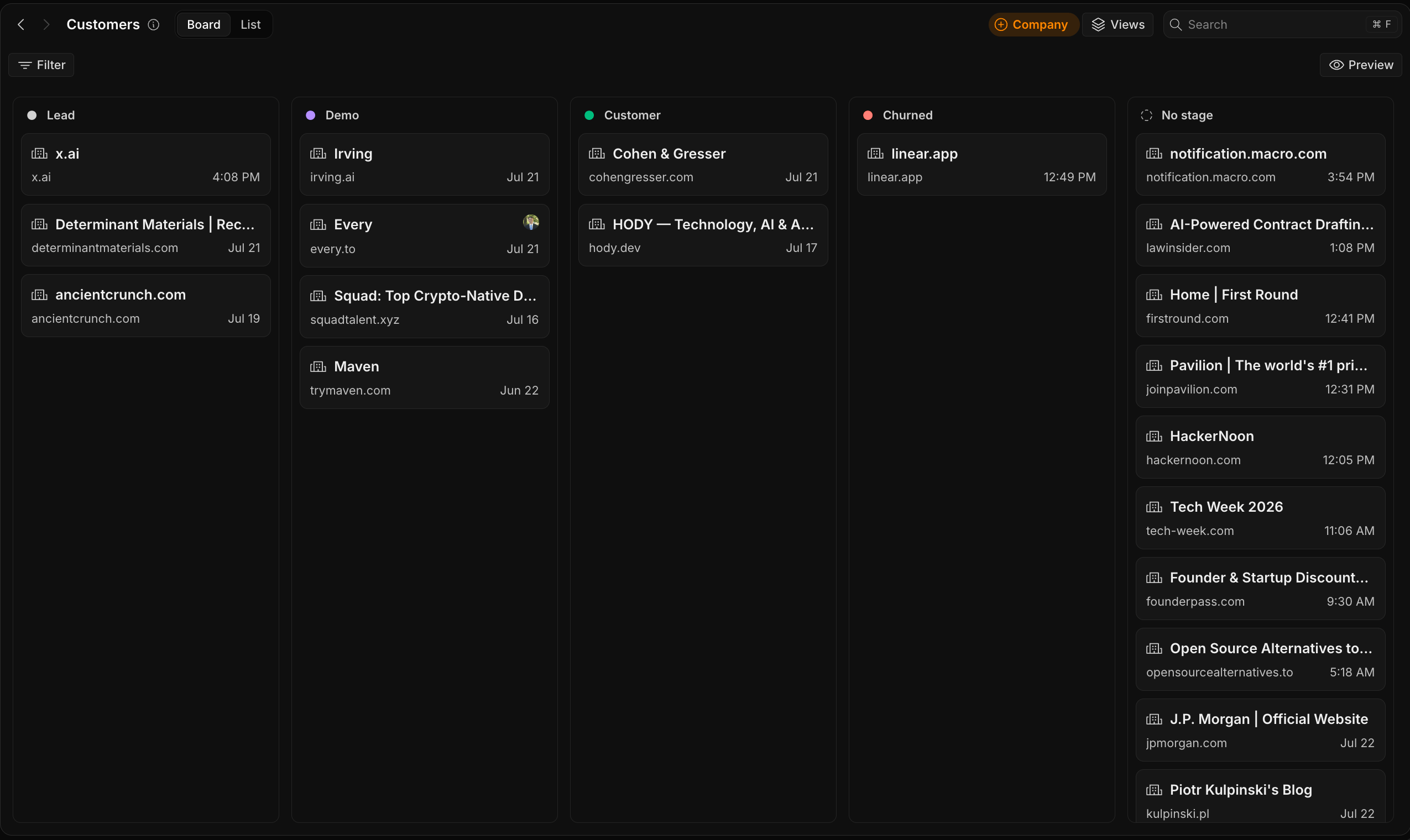
Most CRMs die because nobody fills them in. Macro's CRM builds itself: because your team's email already flows through Macro, contact and company records are created and kept up to date automatically as you work. You don't have to run an importer or type in fields.

### A CRM that lives where you work

The primary benefit of "Macro CRM" is that it's not even a separate CRM: it seamlessly brings the features you need into your existing team collaboration space.

<Note>
  You can also work with our CRM through Macro's MCP server. To connect it, go to **Settings → MCP server**.
</Note>

### Deeply tied into your email client

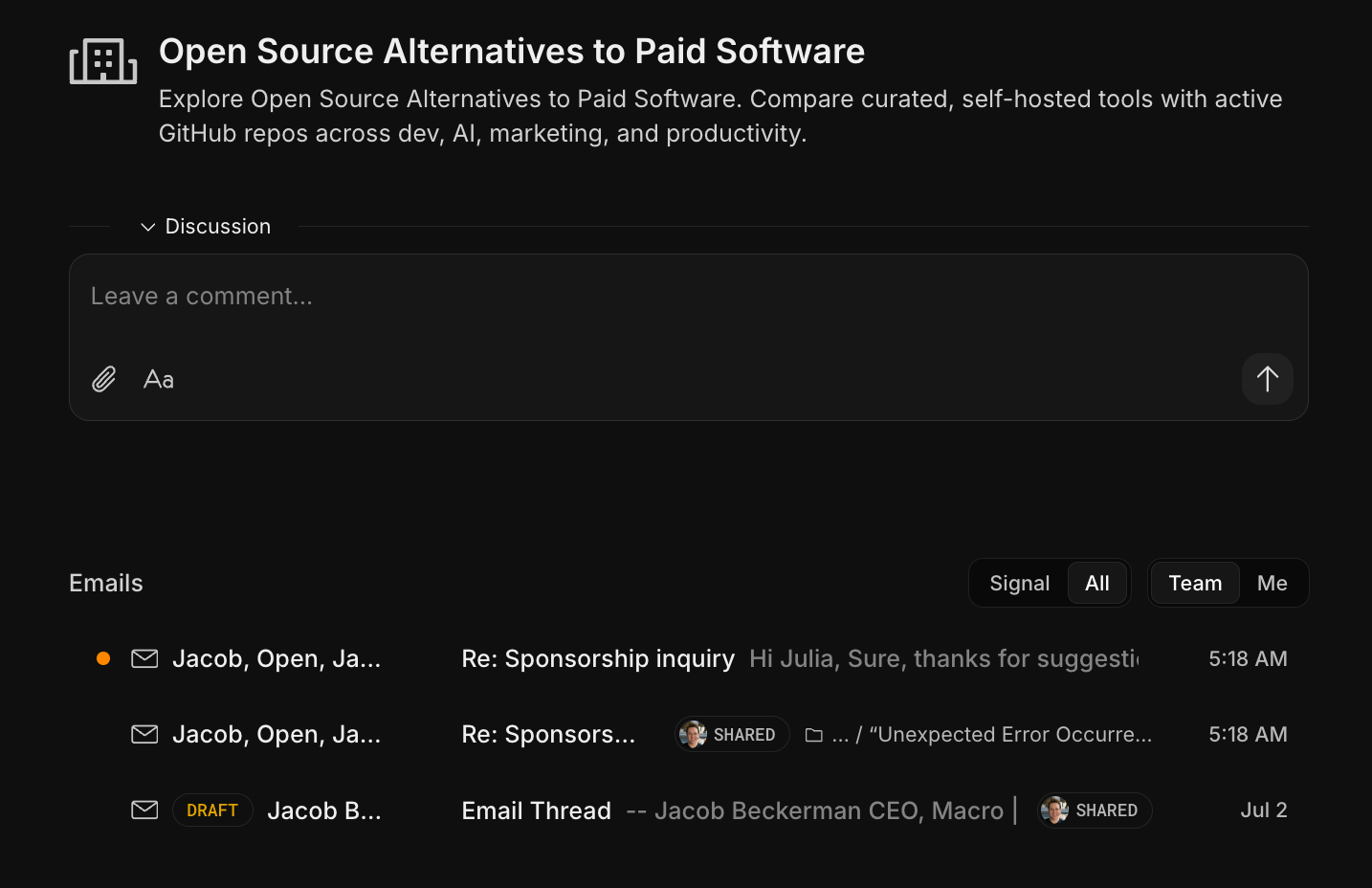
Macro CRM is deeply integrated with the Macro Mail client. It works with your existing email. Most CRMs, like Salesforce, have a limited Gmail/Outlook integration.

<Frame>
  <img src="https://mintcdn.com/macro-a2d84caa/KajalJo9igYN-lIy/images/crm_emails.png?fit=max&auto=format&n=KajalJo9igYN-lIy&q=85&s=1338e034338600ddfda7b233221f174f" alt="Macro CRM records alongside the Mail client" width="1434" height="928" data-path="images/crm_emails.png" />
</Frame>

With Macro there is instant bidirectional syncing, full access to properties, etc, which means you'll never have to open the record itself, and if you feel like it, it's in the same tab.

### Unified with your team chat

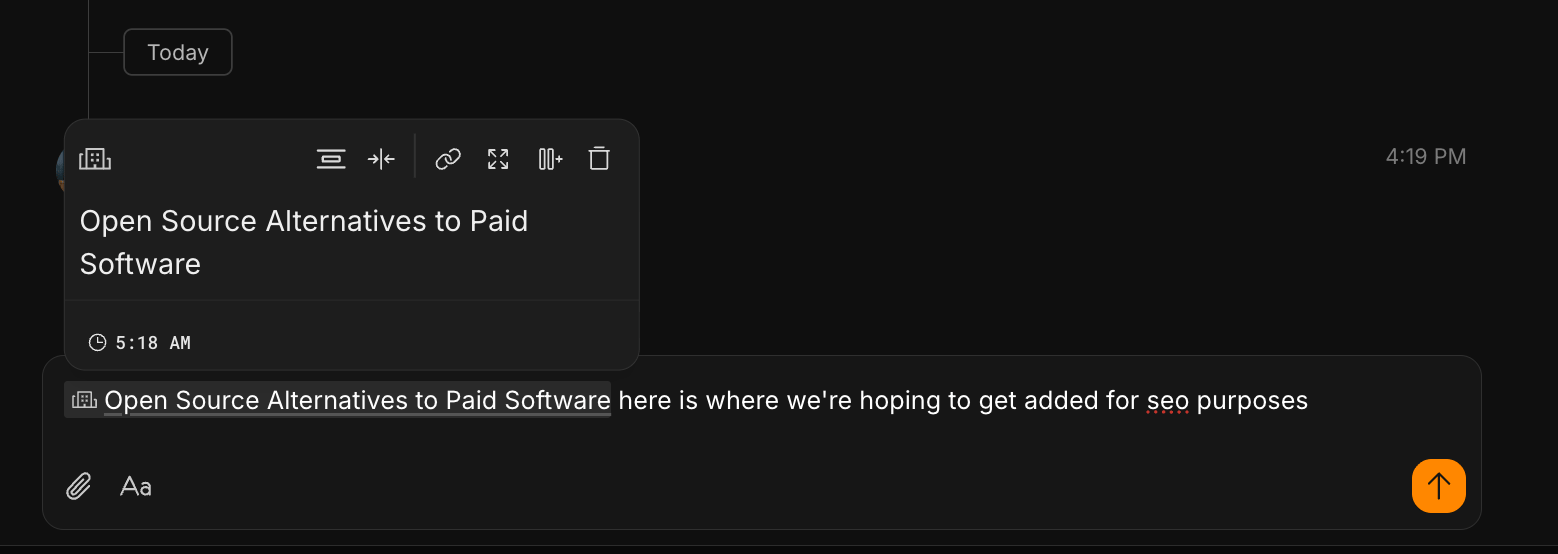
Most CRMs have a "comments" feature on each Contact, Company, and Deal record. The problem is, this isn't your primary communications surface, so while you might leave a comment in HubSpot, you also feel the need to ping the #sales channel in Slack. In Macro, this all works as a single system. You can @mention people on your team and they'll receive a ping just like in a channel. It all goes into one inbox.
<Frame>
  <img src="https://mintcdn.com/macro-a2d84caa/KajalJo9igYN-lIy/images/crm_chat.png?fit=max&auto=format&n=KajalJo9igYN-lIy&q=85&s=76880f428b1f96a8188bd4af5e40c755" alt="Team chat and @mentions on a CRM record" width="1558" height="554" data-path="images/crm_chat.png" />
</Frame>

### @mentionable anywhere

One problem with using products like Slack, Notion, alongside your CRM is that your CRM is a separate system. In Macro, you can @mention things everywhere — docs, tasks, etc.

### Board and list views

The board is the default view when you open **Customers**: every company appears as a card in the column for its current stage, and you drag a card to a new column to move it through your pipeline. Each column header is a stage:
<div style={{ display: 'flex', flexDirection: 'column', gap: '0.75rem', paddingLeft: '1.625rem', margin: '1rem 0' }}>
  <div style={{ display: 'flex', alignItems: 'center', gap: '0.625rem' }}><Icon icon="circle" iconType="solid" color="#9ca3af" size={10} /> <strong>Lead</strong></div>

  <div style={{ display: 'flex', alignItems: 'center', gap: '0.625rem' }}><Icon icon="circle" iconType="solid" color="#4ade80" size={10} /> <strong>Qualified</strong></div>

  <div style={{ display: 'flex', alignItems: 'center', gap: '0.625rem' }}><Icon icon="circle" iconType="solid" color="#a78bfa" size={10} /> <strong>Demo</strong></div>

  <div style={{ display: 'flex', alignItems: 'center', gap: '0.625rem' }}><Icon icon="circle" iconType="solid" color="#fbbf24" size={10} /> <strong>Trial</strong></div>

  <div style={{ display: 'flex', alignItems: 'center', gap: '0.625rem' }}><Icon icon="circle" iconType="solid" color="#fb923c" size={10} /> <strong>Negotiation</strong></div>

  <div style={{ display: 'flex', alignItems: 'center', gap: '0.625rem' }}><Icon icon="circle" iconType="solid" color="#34d399" size={10} /> <strong>Customer</strong></div>

  <div style={{ display: 'flex', alignItems: 'center', gap: '0.625rem' }}><Icon icon="circle" iconType="solid" color="#f87171" size={10} /> <strong>Churned</strong></div>

  <div style={{ display: 'flex', alignItems: 'center', gap: '0.625rem' }}><Icon icon="circle" iconType="regular" color="#9ca3af" size={10} /> <span><strong>No stage</strong>, for companies that haven't been placed in your pipeline yet</span></div>
</div>

While records create themselves, stages are all manual: Macro doesn't yet know where a company lies in your pipeline and relies on you to distinguish your leads from your customers by setting each record's stage. New records start in **No stage** until someone on your team places them.

Prefer a table? Switch to the **List** view from the toggle in the topbar:

<Frame>
  <img src="https://mintcdn.com/macro-a2d84caa/YJRgYrJqf66DBzY8/images/crm_list_view.png?fit=max&auto=format&n=YJRgYrJqf66DBzY8&q=85&s=c53053ae607be489ae8bd9db34085353" alt="The CRM list view, a table grouped by stage" width="2412" height="1520" data-path="images/crm_list_view.png" />
</Frame>

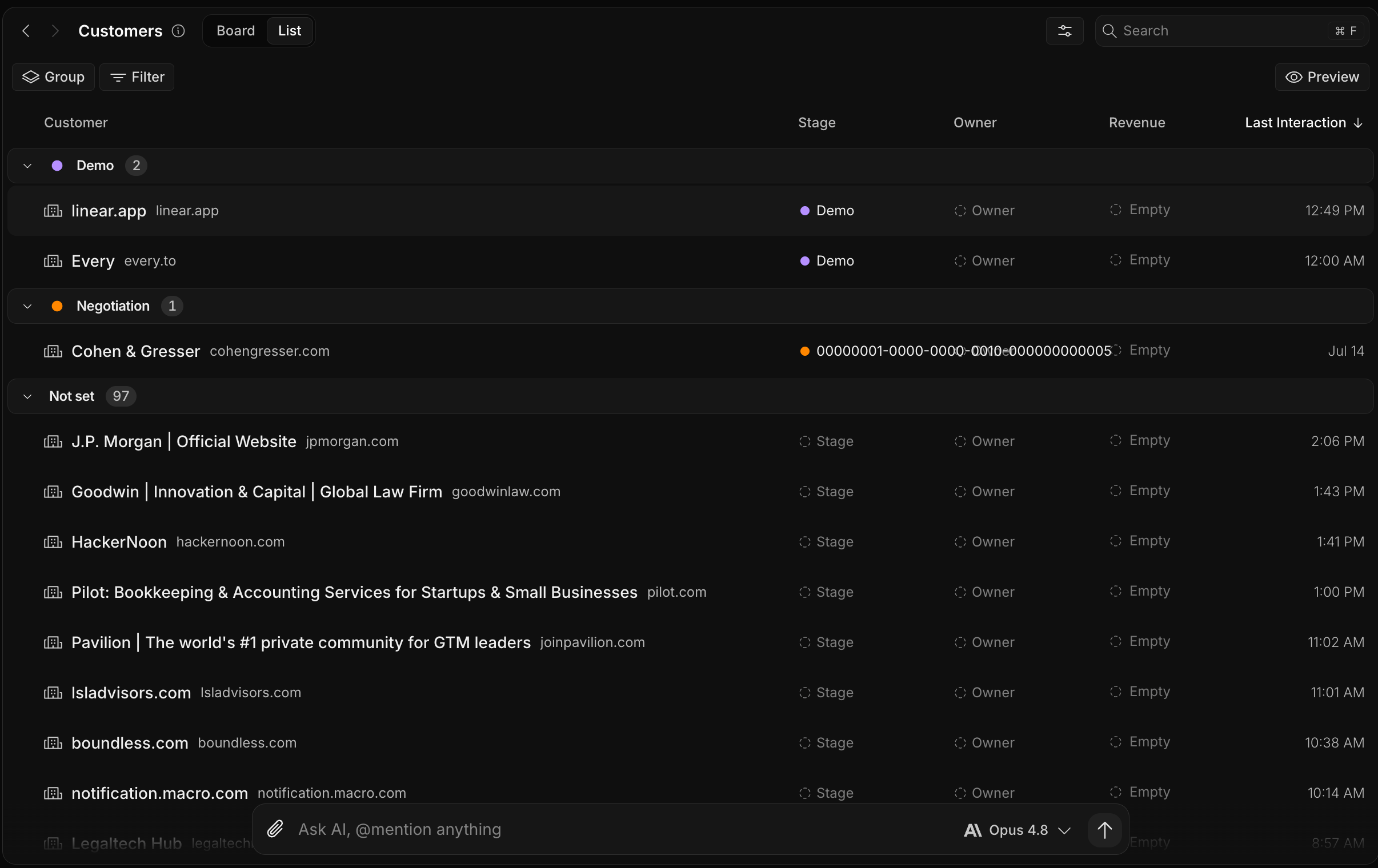
The list trades cards for rows: every company is a row, and each column is a parameter you can set inline. The parameters you can edit are:

<div style={{ display: 'flex', flexDirection: 'column', gap: '0.75rem', paddingLeft: '1.625rem', margin: '1rem 0' }}>
  <div style={{ display: 'flex', alignItems: 'center', gap: '0.625rem' }}><Icon icon="circle-dot" iconType="regular" color="#9ca3af" size={10} /> <span><strong>Stage</strong> — where the company sits in your pipeline (Lead through Churned, or No stage)</span></div>

  <div style={{ display: 'flex', alignItems: 'center', gap: '0.625rem' }}><Icon icon="circle-dot" iconType="regular" color="#9ca3af" size={10} /> <span><strong>Owner</strong> — the teammate responsible for the account</span></div>

  <div style={{ display: 'flex', alignItems: 'center', gap: '0.625rem' }}><Icon icon="circle-dot" iconType="regular" color="#9ca3af" size={10} /> <span><strong>Revenue</strong> — the value you attach to the account</span></div>

  <div style={{ display: 'flex', alignItems: 'center', gap: '0.625rem' }}><Icon icon="circle-dot" iconType="regular" color="#9ca3af" size={10} /> <span><strong>Last Interaction</strong> — the most recent synced email</span></div>
</div>

Use the **Group** and **Filter** controls in the toolbar to reshape the table, or sort by column **Last Interaction** to surface the accounts you've talked to most recently.

<Note>
  Have CRM in Macro but can't see your leads? It needs to be enabled for your team — turn it on in your team settings, or contact your team admin to enable it.
</Note>

### Records build themselves

When someone on your team emails an external contact, Macro creates a contact record for them and groups contacts into companies by email domain (everyone `@acme.com` rolls up to one Acme record). Each contact tracks its first and last interaction, so you can see the full history of a relationship at a glance. Generic tool and vendor domains (the SaaS notification emails every company gets) are filtered out so the CRM stays focused on your actual customers.

New companies are enriched automatically with public data: name, description, logo, website, industry, headcount, funding, location, and social links land on the record without anyone touching it.

### Team sharing

CRM is a team feature, and it's where Macro's email auto-sharing lives. When **Email Sync** is on for a company, your team's email threads with that company become visible to teammates in the CRM, so nobody has to forward a thread just to share context. Turning it off for a company keeps the record but makes its threads private to their participants.

Team admins can also **hide** a company or contact entirely, which removes it (and its threads) from the team's view. Members see visible records; admins and owners can edit records, toggle Email Sync, and manage hidden ones.

<Note>
  Sharing of CRM records is determined by your team, not by mentions: @mentioning a company or contact in a channel does not share it, unlike documents. See [Mentions](/concepts/mentions#what-happens-when-you-mention).
</Note>
