> ## Documentation Index
> Fetch the complete documentation index at: https://docs.macro.com/llms.txt
> Use this file to discover all available pages before exploring further.
# Channels
> Channels are where you and your team collaborate. They serve as the main hub of communication between you and others.
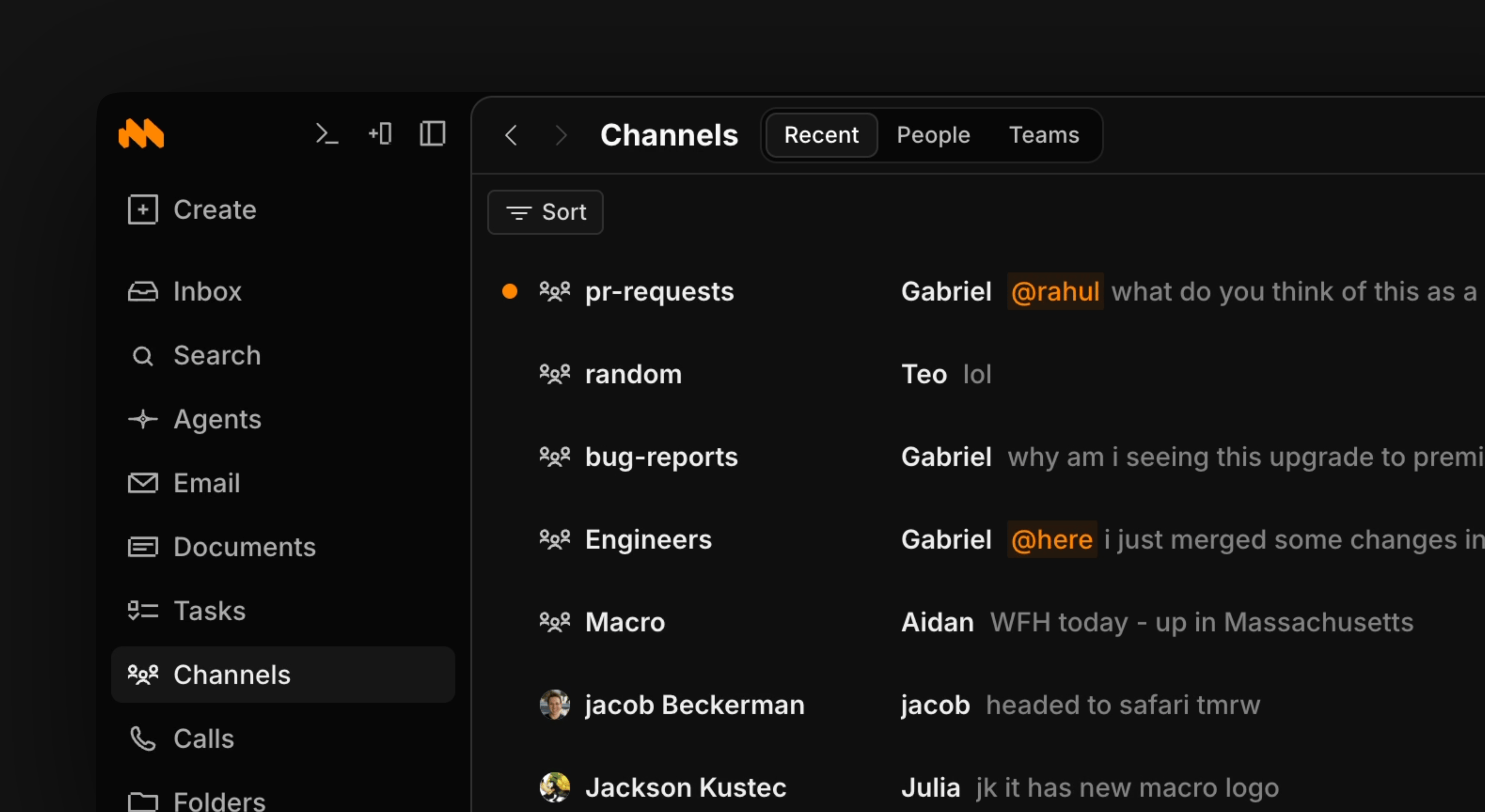 Anyone can be added to a channel by entering their email, even if they're not on your team. People without a Macro account receive an email telling them about their channel notifications.
Organize team conversations by topic, project, or team
Keep discussions organized with threaded conversations
@mention docs, tasks, and emails to create traceable references
Format messages with the same editor used everywhere in Macro
> To create a channel use shortcut c + m
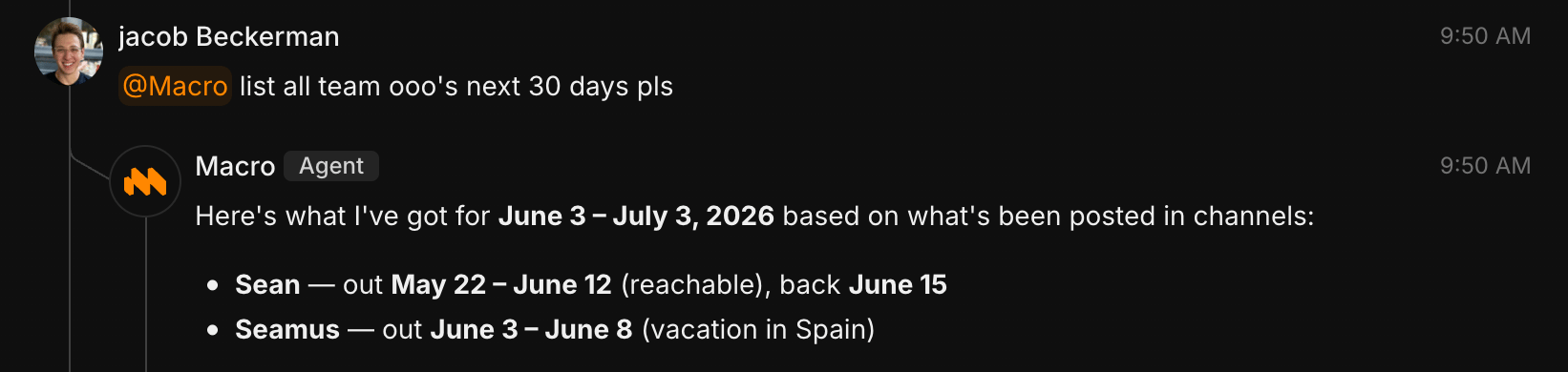
You can also mention @Macro to call an agent into the channel. @Macro can summarize previous discussions, answer workspace questions, and more.
Anyone can be added to a channel by entering their email, even if they're not on your team. People without a Macro account receive an email telling them about their channel notifications.
Organize team conversations by topic, project, or team
Keep discussions organized with threaded conversations
@mention docs, tasks, and emails to create traceable references
Format messages with the same editor used everywhere in Macro
> To create a channel use shortcut c + m
You can also mention @Macro to call an agent into the channel. @Macro can summarize previous discussions, answer workspace questions, and more.
 ## Message Features
### Rich Text Editing
Compose messages using Macro's unified rich text editor:
* **Formatting**: Bold, italic, code blocks, lists
* **@mentions**: Reference users, documents, tasks, files, and more
* **Attachments**: Add files, images, and media
* **Markdown**: Full markdown support for quick formatting
### Reactions
React with emoji instead of sending another message.
### Message actions
Hover over any message on desktop to reveal its action menu. Alongside reactions and replies, you can:
* **Copy Link** — copy a link straight to that message so you can paste it into a doc, task, or another channel.
* **Copy Text** — copy the message's text content to your clipboard.
On mobile, the same actions live in the message action drawer — long-press a message to open it.
### Thread Replies
Keep conversations organized by replying in threads:
1. Click on any message to view or start a thread
2. Thread replies appear indented under the parent message
3. Thread indicators show when new replies are added
Threads help keep channels clean by organizing side conversations and reducing notification noise.
## @Linking System
Messages support bidirectional @links to everything in your workspace:
Start typing `@` to open the mentions menu
Choose from documents, tasks, emails, files, users, or other channels
The mention creates a bidirectional reference you can trace back later
### What You Can @Mention
* **Users**: Notify team members (`@username`)
* **Documents**: Reference notes, wikis, and collaborative docs
* **Tasks**: Link to specific tasks or projects
* **Files**: Reference PDFs, images, videos, and other files
* **Emails**: Link to email threads
* **Channels**: Reference other channels or conversations
* **Dates**: Create date references (`@tomorrow`, `@next week`)
* **Groups**: Mention groups like `@here` or `@team`
When you @mention a document or task in a channel message, it creates a reference you can trace back. The mentioned item will show where it was referenced, creating a bidirectional link.
## Message Editing
Edit messages after sending to fix typos or update information:
* Edited messages show an "edited" indicator
* Full edit history is preserved
* Recipients don't receive duplicate notifications
## Attachments
Share files and media in messages:
* **Drag and drop**: Drop files directly into the message composer
* **File picker**: Browse and select from your storage
* **Auto-import**: Attachments are automatically added to file storage
* **Inline previews**: Images and supported files show inline previews
Attachments shared in channels are automatically imported to Macro's file storage, making them searchable and accessible from anywhere.
## Typing Indicators
See when other participants are typing in real time.
## Participant Management
Manage channel membership:
* Add or remove participants
* View all channel members
* See participant status and presence
## Integration with Macro
Channel messages tie into the rest of Macro:
* **Search**: Find messages with `type:channel` or search by content
* **AI Chat**: Ask questions about channel conversations
* **Canvas**: Embed channel messages in diagrams
* **Documents**: Reference channel discussions in docs
## Best Practices
* Use channels to organize conversations by topic or project
* @mention documents and tasks to create traceable references
* Use threads for side conversations to keep the main channel clean
* React with emoji instead of sending "thanks" messages
* Edit messages to fix mistakes rather than sending corrections
## Message Features
### Rich Text Editing
Compose messages using Macro's unified rich text editor:
* **Formatting**: Bold, italic, code blocks, lists
* **@mentions**: Reference users, documents, tasks, files, and more
* **Attachments**: Add files, images, and media
* **Markdown**: Full markdown support for quick formatting
### Reactions
React with emoji instead of sending another message.
### Message actions
Hover over any message on desktop to reveal its action menu. Alongside reactions and replies, you can:
* **Copy Link** — copy a link straight to that message so you can paste it into a doc, task, or another channel.
* **Copy Text** — copy the message's text content to your clipboard.
On mobile, the same actions live in the message action drawer — long-press a message to open it.
### Thread Replies
Keep conversations organized by replying in threads:
1. Click on any message to view or start a thread
2. Thread replies appear indented under the parent message
3. Thread indicators show when new replies are added
Threads help keep channels clean by organizing side conversations and reducing notification noise.
## @Linking System
Messages support bidirectional @links to everything in your workspace:
Start typing `@` to open the mentions menu
Choose from documents, tasks, emails, files, users, or other channels
The mention creates a bidirectional reference you can trace back later
### What You Can @Mention
* **Users**: Notify team members (`@username`)
* **Documents**: Reference notes, wikis, and collaborative docs
* **Tasks**: Link to specific tasks or projects
* **Files**: Reference PDFs, images, videos, and other files
* **Emails**: Link to email threads
* **Channels**: Reference other channels or conversations
* **Dates**: Create date references (`@tomorrow`, `@next week`)
* **Groups**: Mention groups like `@here` or `@team`
When you @mention a document or task in a channel message, it creates a reference you can trace back. The mentioned item will show where it was referenced, creating a bidirectional link.
## Message Editing
Edit messages after sending to fix typos or update information:
* Edited messages show an "edited" indicator
* Full edit history is preserved
* Recipients don't receive duplicate notifications
## Attachments
Share files and media in messages:
* **Drag and drop**: Drop files directly into the message composer
* **File picker**: Browse and select from your storage
* **Auto-import**: Attachments are automatically added to file storage
* **Inline previews**: Images and supported files show inline previews
Attachments shared in channels are automatically imported to Macro's file storage, making them searchable and accessible from anywhere.
## Typing Indicators
See when other participants are typing in real time.
## Participant Management
Manage channel membership:
* Add or remove participants
* View all channel members
* See participant status and presence
## Integration with Macro
Channel messages tie into the rest of Macro:
* **Search**: Find messages with `type:channel` or search by content
* **AI Chat**: Ask questions about channel conversations
* **Canvas**: Embed channel messages in diagrams
* **Documents**: Reference channel discussions in docs
## Best Practices
* Use channels to organize conversations by topic or project
* @mention documents and tasks to create traceable references
* Use threads for side conversations to keep the main channel clean
* React with emoji instead of sending "thanks" messages
* Edit messages to fix mistakes rather than sending corrections