> ## Documentation Index
> Fetch the complete documentation index at: https://docs.macro.com/llms.txt
> Use this file to discover all available pages before exploring further.
# Canvas
> An infinite 2D board where sketches, shapes, and live blocks from your workspace sit side by side.
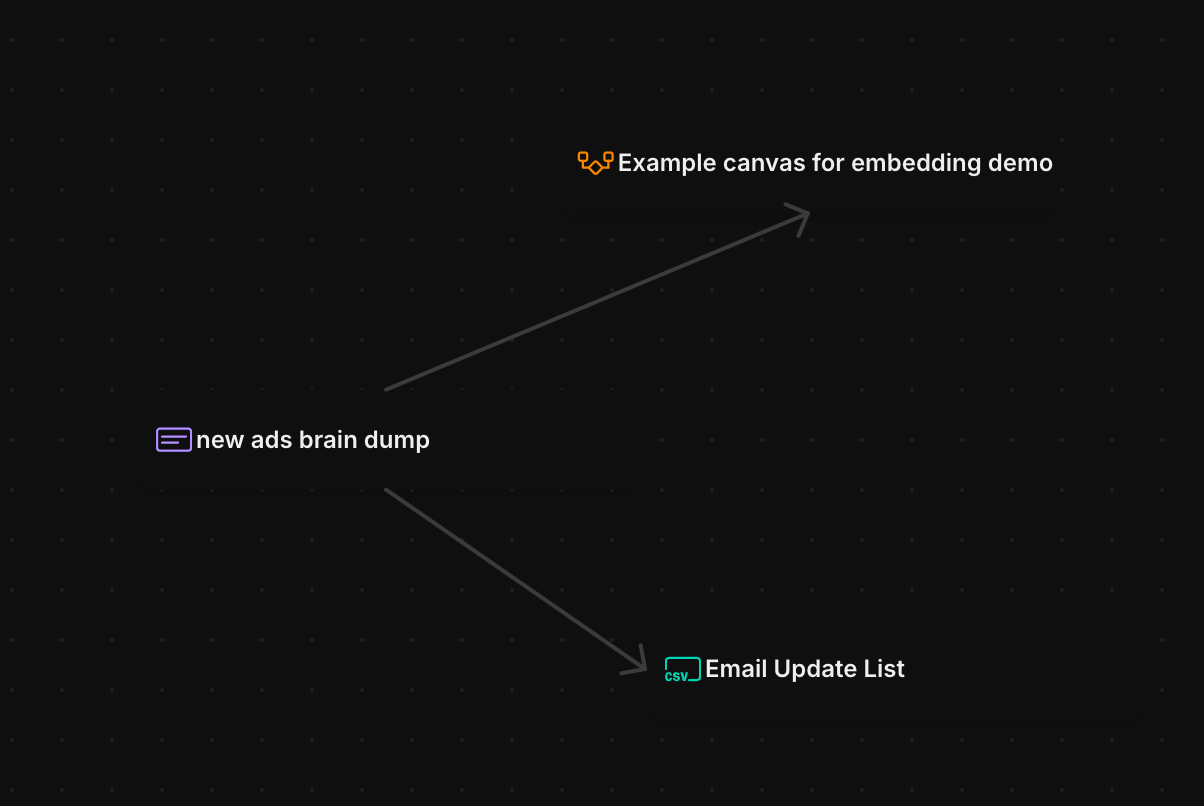
A canvas is Macro's whiteboard block: an infinite 2D plane for mind-mapping, technical diagrams, project planning, or just grouping files visually. Unlike a standalone whiteboard tool, you can place live @mentions of anything in your workspace (tasks, docs, emails, channels, calls) directly on the board, so a diagram can point at the real work it describes.
> To create a canvas use shortcut c + n
 ### What you can put on a canvas
* **Blocks from your workspace**: @mention any doc, task, email, channel, call, or chat. Mentions render as live pills that carry current metadata, like a task's status and priority.
* **Shapes and text**: rectangles, ellipses, and styled text, with configurable fill, stroke, corner radius, and opacity.
* **Connectors**: straight, curved, or stepped lines between objects, with arrowheads and other end styles on either end.
* **Freehand drawing**: sketch with the pencil tool.
* **Images**: paste, drag in, or pick from your files.
### Working on the board
Pick tools from the toolbar or by key: v select, h hand (pan), r shape, x connector, p pencil, t text. Zoom with cmd+= / cmd+- or the mouse wheel.
Drag to box-select multiple objects, then use the floating menu to align them (left, center, right, top, middle, bottom). Group a selection with cmd+g and ungroup with shift+cmd+g. Reorder stacking with ] (bring to front) and \[ (send to back). Nudge selected objects with the arrow keys, or hold shift for larger steps. The usual cmd+c / cmd+x / cmd+v, cmd+z undo, and delete all work as expected.
### Sharing
Canvases use the standard share dialog with owner, editor, commenter, and viewer access. When you copy a link to a canvas, your current pan and zoom position is preserved, so the link opens framed on the part of the board you were looking at. You can also download a canvas as a file, and @mention canvases anywhere else in Macro. They show up in [unified search](/product/search) like every other block.
### What you can put on a canvas
* **Blocks from your workspace**: @mention any doc, task, email, channel, call, or chat. Mentions render as live pills that carry current metadata, like a task's status and priority.
* **Shapes and text**: rectangles, ellipses, and styled text, with configurable fill, stroke, corner radius, and opacity.
* **Connectors**: straight, curved, or stepped lines between objects, with arrowheads and other end styles on either end.
* **Freehand drawing**: sketch with the pencil tool.
* **Images**: paste, drag in, or pick from your files.
### Working on the board
Pick tools from the toolbar or by key: v select, h hand (pan), r shape, x connector, p pencil, t text. Zoom with cmd+= / cmd+- or the mouse wheel.
Drag to box-select multiple objects, then use the floating menu to align them (left, center, right, top, middle, bottom). Group a selection with cmd+g and ungroup with shift+cmd+g. Reorder stacking with ] (bring to front) and \[ (send to back). Nudge selected objects with the arrow keys, or hold shift for larger steps. The usual cmd+c / cmd+x / cmd+v, cmd+z undo, and delete all work as expected.
### Sharing
Canvases use the standard share dialog with owner, editor, commenter, and viewer access. When you copy a link to a canvas, your current pan and zoom position is preserved, so the link opens framed on the part of the board you were looking at. You can also download a canvas as a file, and @mention canvases anywhere else in Macro. They show up in [unified search](/product/search) like every other block.