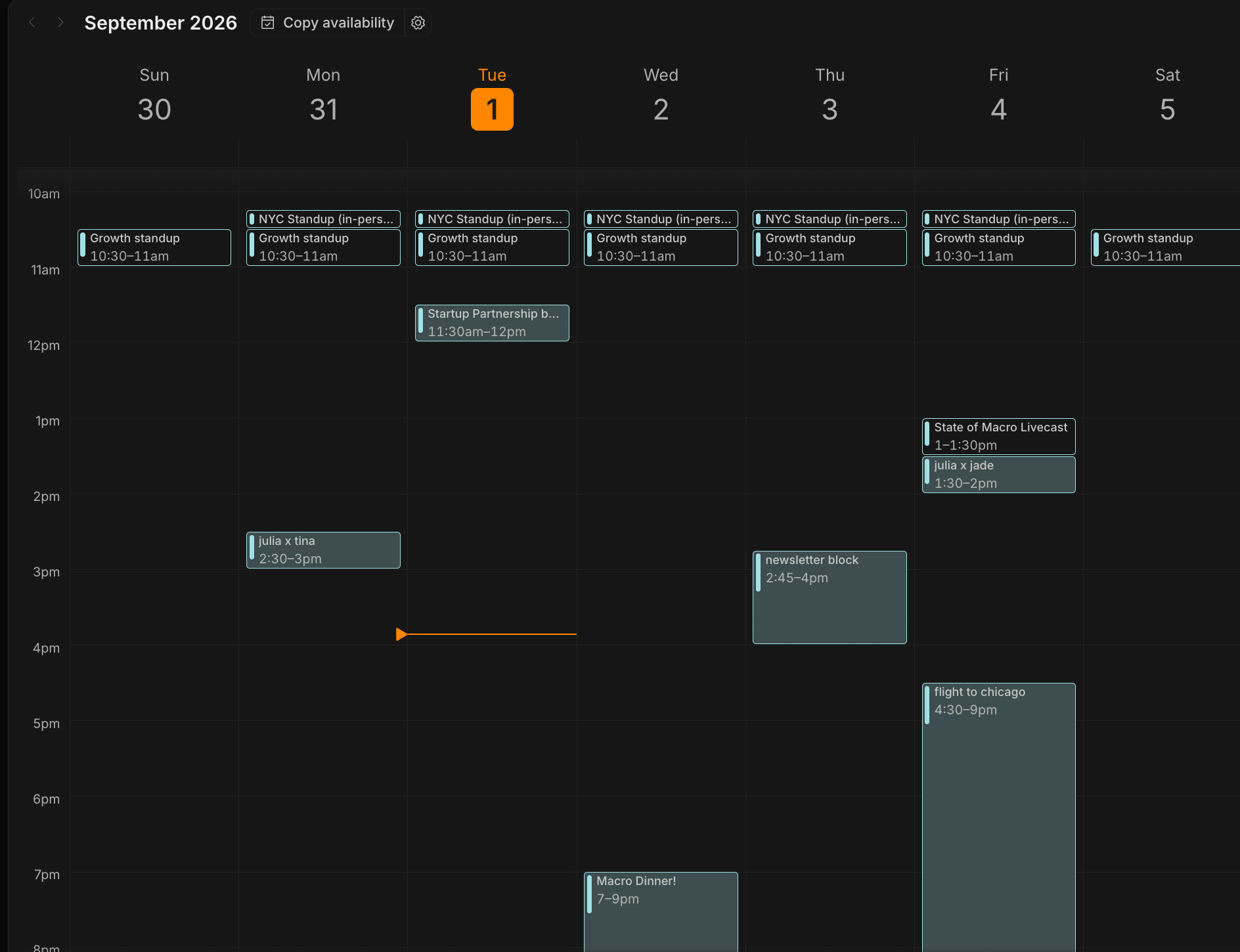
 Calendar is a Macro block that syncs with Google Calendar. Events are entities in your workspace, so you can search them, @mention them, and hand them to the [Macro agent](/product/agents) the same way you would a doc or a task. Edits you make in Macro sync back to Google.
Open it from **Calendar** in the sidebar, or press g + r.
### Connecting your calendar
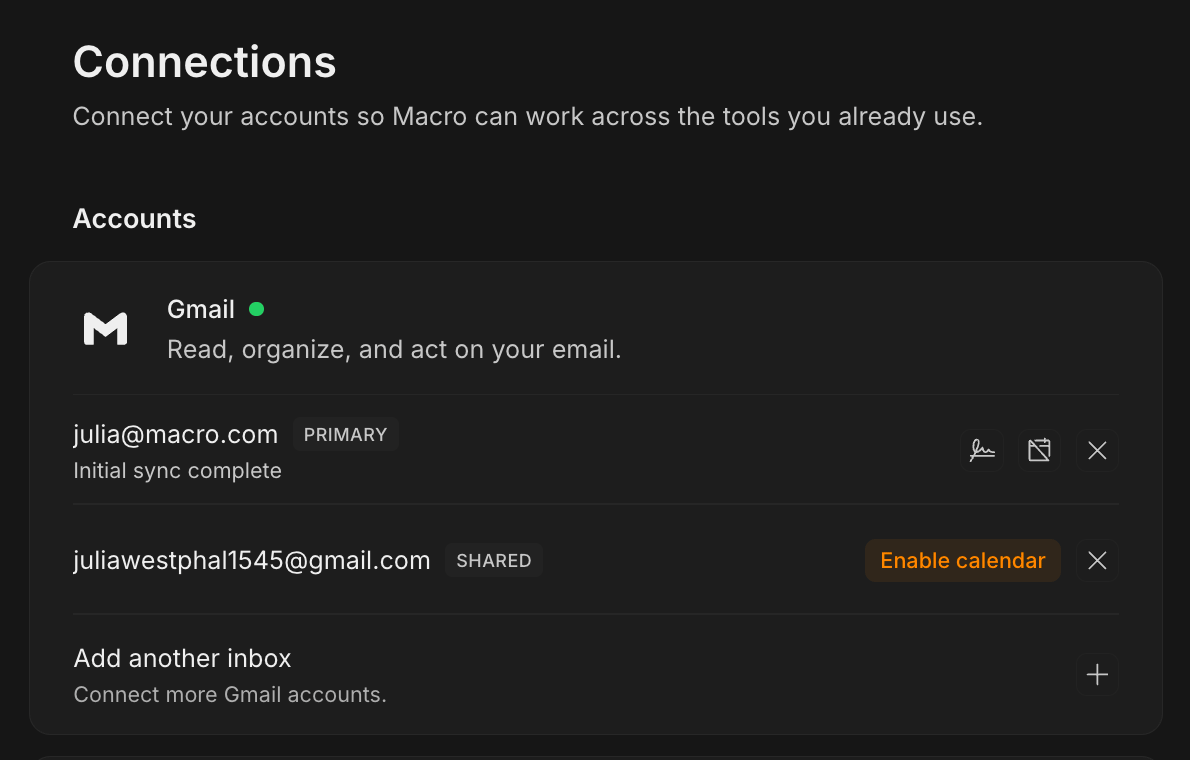
Connect your calendar by going to **Settings → Connections**, finding the account you want, and clicking **Enable calendar**.
Macro supports [multiple email accounts in one inbox](/product/email#multi-account-inbox) and multiple email calendar views. **You have to enable calendar for each account separately.** Every linked inbox in **Settings → Connections** carries its own **Enable calendar** button.
Use the settings gear in the calendar topbar to toggle each calendar on or off, so you can view several at once or focus on just one.
Calendar is a Macro block that syncs with Google Calendar. Events are entities in your workspace, so you can search them, @mention them, and hand them to the [Macro agent](/product/agents) the same way you would a doc or a task. Edits you make in Macro sync back to Google.
Open it from **Calendar** in the sidebar, or press g + r.
### Connecting your calendar
Connect your calendar by going to **Settings → Connections**, finding the account you want, and clicking **Enable calendar**.
Macro supports [multiple email accounts in one inbox](/product/email#multi-account-inbox) and multiple email calendar views. **You have to enable calendar for each account separately.** Every linked inbox in **Settings → Connections** carries its own **Enable calendar** button.
Use the settings gear in the calendar topbar to toggle each calendar on or off, so you can view several at once or focus on just one.
 ### Creating and editing events
Click an empty slot on the grid to start an event there, or drag across a range to set its length as you create it.
The event highlight takes the color of the calendar you're saving to. Switch calendars under the selections and the event color will switch to match. This way it's clear which calendar a new event is being added to.
You edit details inline on the event itself. Type the title and description directly, and click any other pill to open a small editor in place:
### Creating and editing events
Click an empty slot on the grid to start an event there, or drag across a range to set its length as you create it.
The event highlight takes the color of the calendar you're saving to. Switch calendars under the selections and the event color will switch to match. This way it's clear which calendar a new event is being added to.
You edit details inline on the event itself. Type the title and description directly, and click any other pill to open a small editor in place:
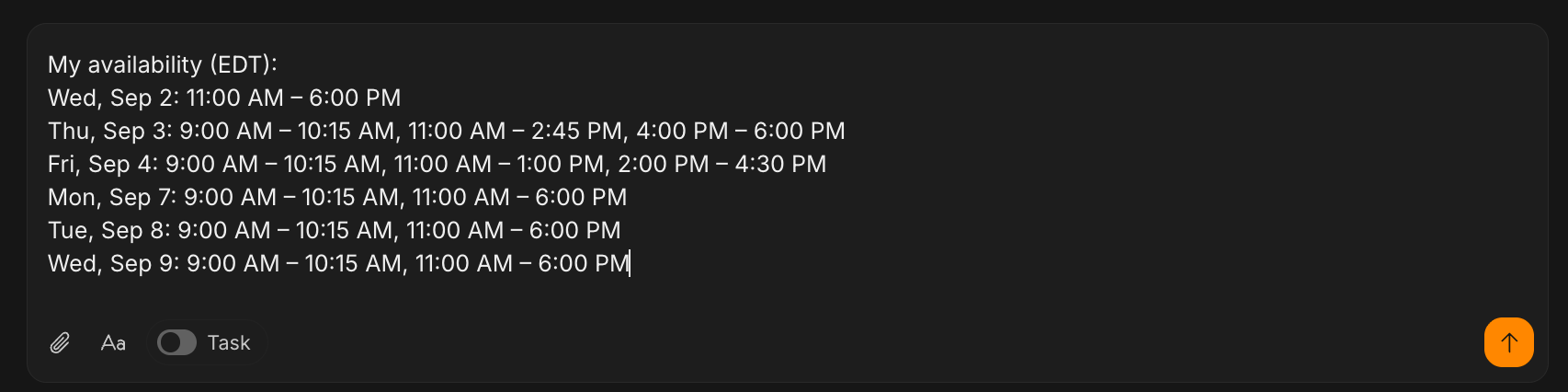 Click **Copy availability** in the topbar to turn your open time into pasteable text, labeled with your timezone and ready to drop into a reply.
Set your working hours from the settings control next to the button. By default they run 9:00 to 18:00 and skip weekends.
### Calendar and MCP
The [Macro agent](/product/agents) can read and change your calendar. Ask it to find a slot, book a meeting, move something, or RSVP, and it shows you a preview of the event before anything is written.
You can use the same tools over Macro's MCP server:
* [`ListCalendars`](/AI/mcp/tools/list-calendars)
* [`ListCalendarEvents`](/AI/mcp/tools/list-calendar-events)
* [`CreateCalendarEvent`](/AI/mcp/tools/create-calendar-event)
* [`UpdateCalendarEvent`](/AI/mcp/tools/update-calendar-event)
* [`DeleteCalendarEvent`](/AI/mcp/tools/delete-calendar-event)
To connect it, go to **Settings → MCP server**.
### Turning calendar off
You can turn calendar off for a single account from **Settings → Connections**, or from the calendar's settings menu.
Macro deletes its copy of that account's events and gives up calendar access. Your Google Calendar stays untouched and the inbox keeps syncing mail as normal. To turn calendar back on, grant access again.
Click **Copy availability** in the topbar to turn your open time into pasteable text, labeled with your timezone and ready to drop into a reply.
Set your working hours from the settings control next to the button. By default they run 9:00 to 18:00 and skip weekends.
### Calendar and MCP
The [Macro agent](/product/agents) can read and change your calendar. Ask it to find a slot, book a meeting, move something, or RSVP, and it shows you a preview of the event before anything is written.
You can use the same tools over Macro's MCP server:
* [`ListCalendars`](/AI/mcp/tools/list-calendars)
* [`ListCalendarEvents`](/AI/mcp/tools/list-calendar-events)
* [`CreateCalendarEvent`](/AI/mcp/tools/create-calendar-event)
* [`UpdateCalendarEvent`](/AI/mcp/tools/update-calendar-event)
* [`DeleteCalendarEvent`](/AI/mcp/tools/delete-calendar-event)
To connect it, go to **Settings → MCP server**.
### Turning calendar off
You can turn calendar off for a single account from **Settings → Connections**, or from the calendar's settings menu.
Macro deletes its copy of that account's events and gives up calendar access. Your Google Calendar stays untouched and the inbox keeps syncing mail as normal. To turn calendar back on, grant access again.