> ## Documentation Index
> Fetch the complete documentation index at: https://docs.macro.com/llms.txt
> Use this file to discover all available pages before exploring further.
# Blocks
> Blocks are at the core of Macro's philosophy. They are designed to work together like legos.
Everything in Macro is a **block**. The current first-party block types are `md` (documents), `email`, `channel`, `chat` (agents), `automation`, `project` (tasks), `contact` (crm), `company` (crm), `call`, `canvas`, `code`, `image`, `video`, `pdf`, and `unknown` (fallback).
## Splits
On desktop (not on mobile), Macro has its own window manager that lets you multi-task in your browser in one tab. By default when you open Macro you have one *split*.
In general, you can use shift+click to open an @mention or list item in a new split.
Each split maintains its own history. Use opt \[ or opt ] to move back and forward, or just press the chevron icons in the top bar of the split.
Create a split with cmd+\\, focus left/right with shift+h / shift+l, maximize with shift+escape, close with cmd+escape.
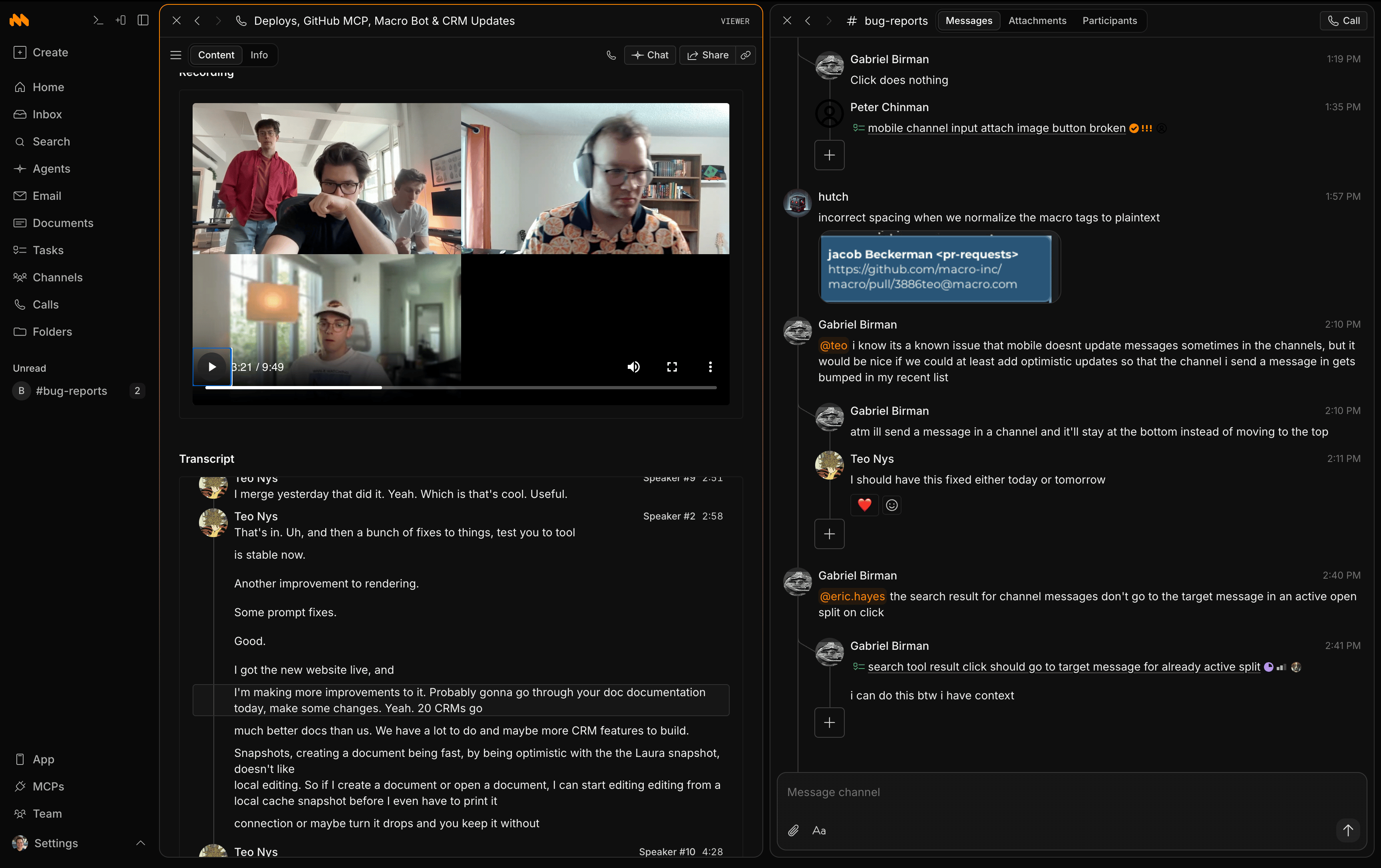 The number of splits you can have open at once is determined by your monitor size and zoom. If there isn't room for another split, Macro won't open a new one until you close one.
## Previews
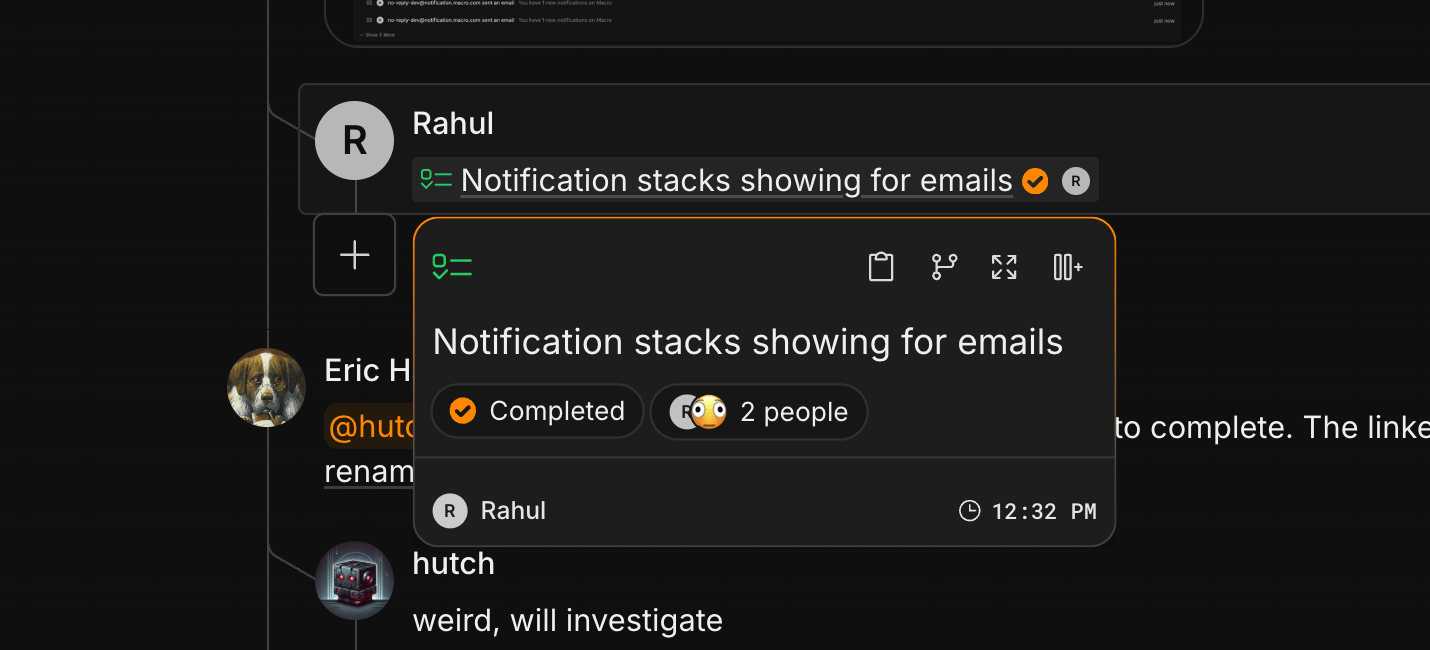
Most block types have on-hover previews to provide context without needing to click. When you @mention a block in any markdown area (a task, doc, channel, etc.), anyone who hovers over the mention sees the preview. For example, here is a task preview:
The number of splits you can have open at once is determined by your monitor size and zoom. If there isn't room for another split, Macro won't open a new one until you close one.
## Previews
Most block types have on-hover previews to provide context without needing to click. When you @mention a block in any markdown area (a task, doc, channel, etc.), anyone who hovers over the mention sees the preview. For example, here is a task preview:
 ## Embeds
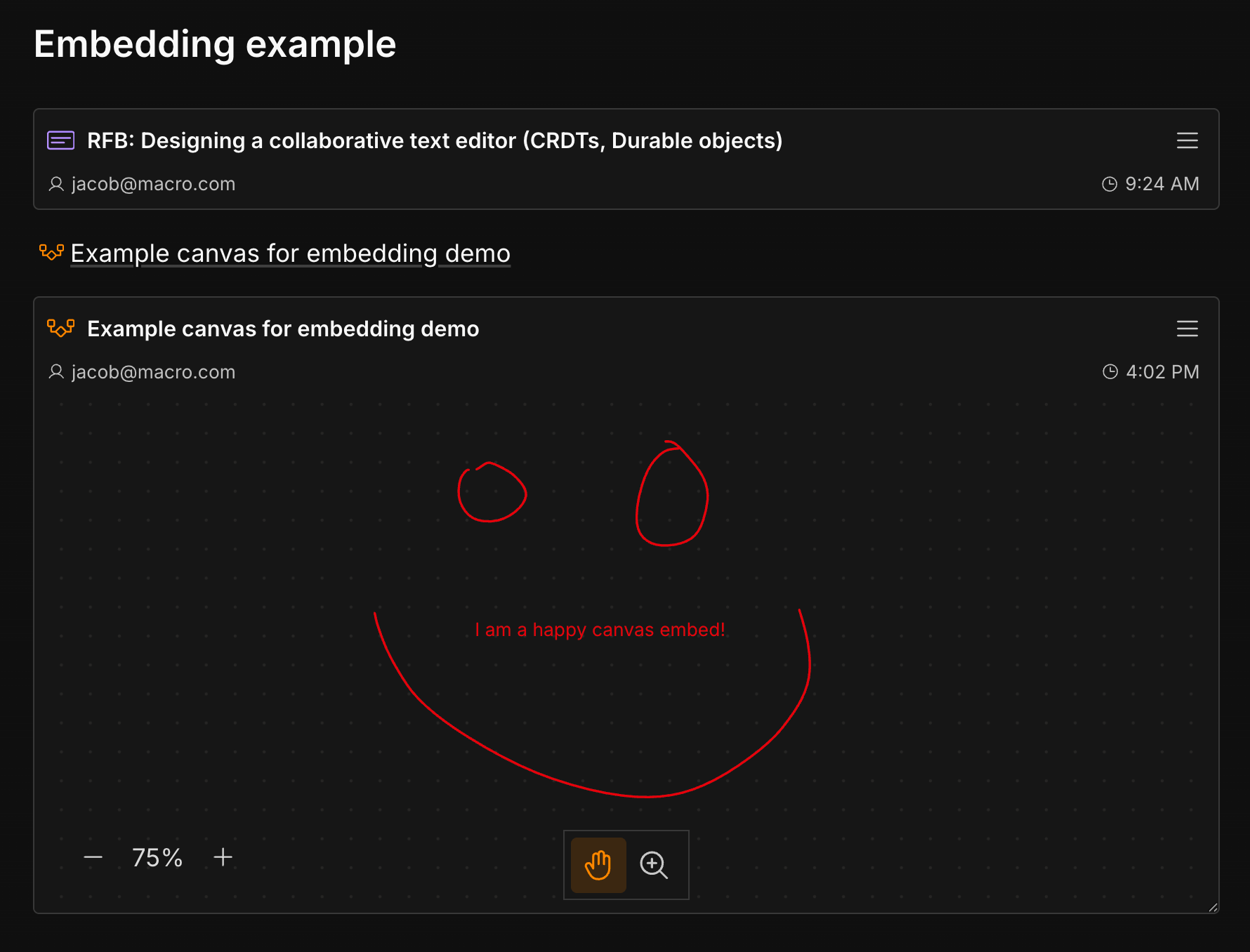
Most blocks embed read-only in a markdown doc, with editing and markup tools disabled. Note that permissions are not auto-granted for embeds or mentions in documents, unlike mentions in channels, where channel members get access automatically. You'll have to also share the files you embed.
## Embeds
Most blocks embed read-only in a markdown doc, with editing and markup tools disabled. Note that permissions are not auto-granted for embeds or mentions in documents, unlike mentions in channels, where channel members get access automatically. You'll have to also share the files you embed.
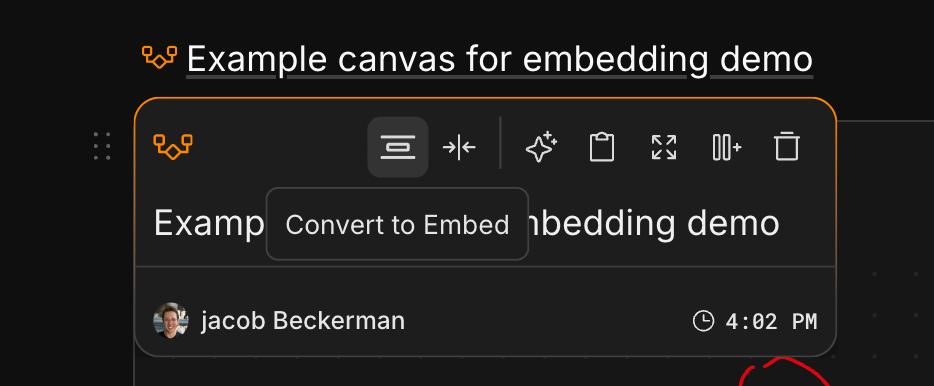
 To create an embed, first create an @mention by hitting `@` or dragging and dropping, then hover and click **Convert to embed**.
 ## More about blocks
* **References, sharing & permissions**: every block has a References panel (backlinks to everywhere it's mentioned or embedded) and the same share dialog, with owner / editor / commenter / viewer access levels plus public links for documents.
* **Real-time collaboration**: collaborative blocks (docs, pdf markup) sync through **Loro CRDTs** over a **Cloudflare Durable Objects** backend: the Rust `sync-service` spins up one Durable Object "room" per document, and clients connect over WebSocket to `/document/:id`. This is what gives you multiplayer editing, presence cursors, and full offline support.
* **Search & Inbox**: one unified [Search](/product/search) index covers every block type, filterable by type and by mentioned person. The unified [Inbox](/product/inbox) pulls open notifications from across blocks into a single recency-sorted list.
## More about blocks
* **References, sharing & permissions**: every block has a References panel (backlinks to everywhere it's mentioned or embedded) and the same share dialog, with owner / editor / commenter / viewer access levels plus public links for documents.
* **Real-time collaboration**: collaborative blocks (docs, pdf markup) sync through **Loro CRDTs** over a **Cloudflare Durable Objects** backend: the Rust `sync-service` spins up one Durable Object "room" per document, and clients connect over WebSocket to `/document/:id`. This is what gives you multiplayer editing, presence cursors, and full offline support.
* **Search & Inbox**: one unified [Search](/product/search) index covers every block type, filterable by type and by mentioned person. The unified [Inbox](/product/inbox) pulls open notifications from across blocks into a single recency-sorted list.